

























Content ITV PRO
This is Itvedant Content department
Learning Outcome
5
Validate elements that become visible after scrolling.
4
Use Playwright methods such as scrollIntoViewIfNeeded().
3
Scroll to a specific web element.
2
Perform vertical and horizontal scrolling using Playwright.
1
Understand the need for scrolling in web automation
Recall
Browser, Context, and Page control the webpage in Playwright.
Web Element Actions interact with webpage elements.
Dynamic Elements appear or load during scrolling.
Waits ensure elements are loaded before scrolling.
Locators identify elements that need scrolling.
Open product page
View product details at the top
Scroll down to find reviews
Imagine you are using an online shopping website
Interact with the required element
Scroll further to find the buy section
Product added succesfully
Similarly, in Playwright, scrolling helps bring off-screen elements into view so they can be identified, validated, or interacted with.
Why Scrolling Is Required ?
Access web elements that are outside the visible screen area.
Interact with buttons, links, and forms located further down the page
Handle long web pages and dynamic content loading.
Ensure elements are visible before performing actions.
Images and icons
Professional design
Validate content present in different sections of a webpage.
Simulate real user behavior during automation testing.
Why Scrolling Is Required ?
Scrolling helps Playwright automation reach and interact with elements that are not immediately visible on the screen, making tests more reliable and realistic.
What is Scrolling?
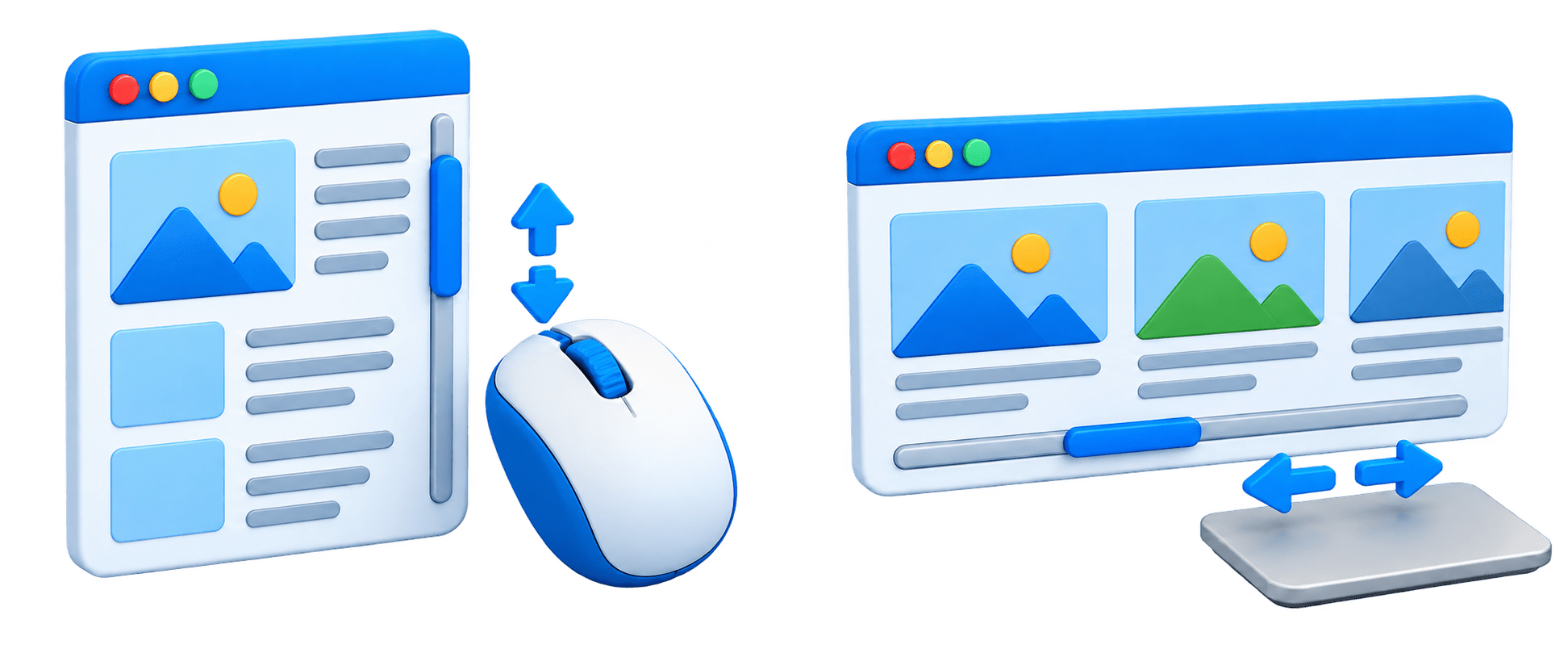
Scrolling is the process of moving up, down, left, or right on a webpage to view content that is outside the currently visible screen area.
In Playwright, scrolling allows automation scripts to access and interact with elements that are not currently visible in the viewport.
Types of Scrolling
Vertical Scrolling
Moves the webpage up or down to view content above or below the current viewport.
1
Horizontal Scrolling
Moves the webpage left or right to access content that extends beyond the screen width.
2
In Playwright Scrolling is mainly used to bring hidden or off-screen content into the visible area before performing actions or validations.
Handling Scrolling in Playwright
Scroll to an Element
Use scrollIntoViewIfNeeded() to bring a specific element into the viewport.
page.locator("#footer").scrollIntoViewIfNeeded();Scroll Using Mouse Wheel
Use mouse().wheel() to scroll vertically or horizontally.
page.mouse().wheel(0, 500); // Scroll down
page.mouse().wheel(0, -500); // Scroll up
Scroll Using JavaScript
Execute JavaScript through page.evaluate()
page.evaluate("window.scrollTo(0, document.body.scrollHeight)");Scroll to Top
page.evaluate("window.scrollTo(0, 0)");Scroll to Bottom
page.evaluate("window.scrollTo(0, document.body.scrollHeight)");Prefer Playwright's built-in scrolling methods such as scrollIntoViewIfNeeded() when interacting with a specific element, as Playwright can automatically handle scrolling in many actions.
Validating Scrolled Content
After scrolling, Playwright can verify that the expected content is visible or accessible.
Check element visibility after scrolling.
Validate text displayed in the scrolled section.
Verify element state such as enabled, checked, or selected.
Confirm specific sections are loaded after scrolling.
Validate dynamically loaded content in infinite-scroll pages.
Locator footer = page.locator("footer");
footer.scrollIntoViewIfNeeded();
assertTrue(footer.isVisible());
assertTrue(footer.textContent().contains("Contact Us"));
Example
Purpose
Ensures that scrolling has successfully brought the required content into view and that the content is displayed correctly.
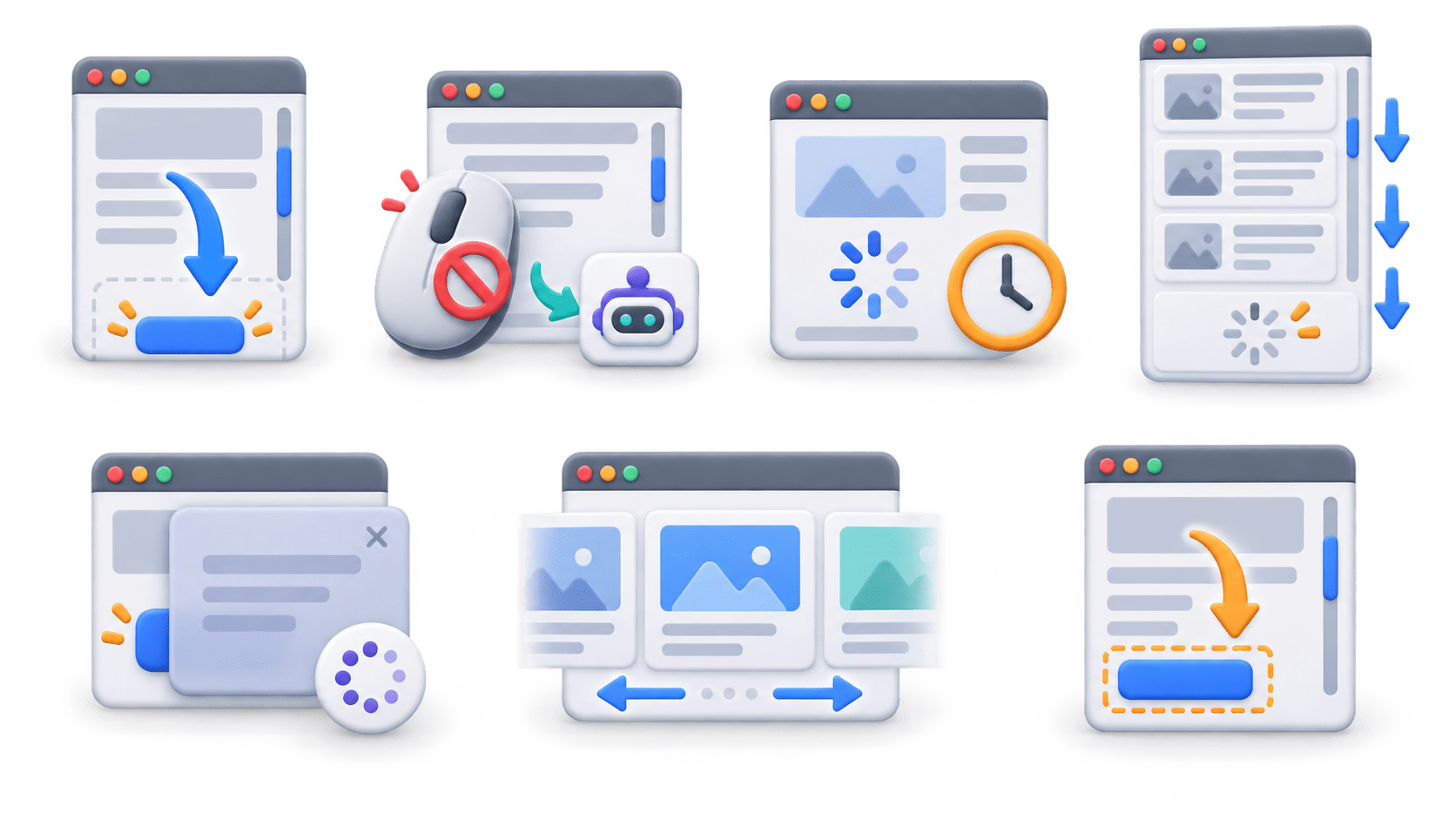
Common Scrolling Issues and Solutions
Element is not visible
Use scrollIntoViewIfNeeded() to bring the element into view.
1
Scroll does not work
Use page.mouse().wheel() or JavaScript scrolling.
2
Dynamic content loads slowly
Use appropriate waits before validating the content.
3
Infinite scroll stops loading
Scroll multiple times and wait for new content to load.
4
Element is covered by another element
Wait until the element becomes visible and stable.
5
Horizontal content is not visible
Use horizontal scrolling to access the required content.
6
Unexpected scroll position
Use Playwright's built-in scrolling methods whenever possible.
7
Practical Scrolling Automation Example
Scroll down a webpage and verify that a specific element becomes visible.
1.Launch the browser
Browser browser = playwright.chromium().launch(
    new BrowserType.LaunchOptions().setHeadless(false)
);
2.Open the webpage
Browser browser = playwright.chromium().launch(
    new BrowserType.LaunchOptions().setHeadless(false)
);
3.Identify the element
Locator element = page.locator("#footer");4.Scroll to the element
element.scrollIntoViewIfNeeded();5.Validate the element
Assert.assertTrue(element.isVisible());
System.out.println("Element is visible after scrolling.");
6.Close the browser
browser.close();scrollIntoViewIfNeeded()
is useful when you need to scroll directly to a particular element before performing an action or validation.
import com.microsoft.playwright.*;
import org.testng.Assert;
import org.testng.annotations.Test;
public class ScrollingTest {
    @Test
    public void verifyScrolling() {
        Playwright playwright = Playwright.create();
        Browser browser = playwright.chromium().launch(
            new BrowserType.LaunchOptions().setHeadless(false)
        );
        Page page = browser.newPage();
        // Open webpage
        page.navigate("https://example.com");
        // Locate element
        Locator footer = page.locator("footer");
        // Scroll to element
        footer.scrollIntoViewIfNeeded();
        // Validate element
        Assert.assertTrue(footer.isVisible());
        System.out.println("Footer is visible after scrolling.");
        // Close browser
        browser.close();
        playwright.close();
}}
Summary
5
Handles nested frames without Selenium-style switching.
4
Supports locating, actions, and validations.
3
scrollIntoViewIfNeeded() brings elements into the visible area.
2
Scrolling moves vertically or horizontally across a webpage.
1
Scrolling accesses content outside the visible area.
Quiz
Which method is used to scroll a specific element into the viewport?
A. scrollToElement()
B. scrollIntoViewIfNeeded()
C. moveToElement()
D. scrollElement()
Quiz-Answer
Which method is used to scroll a specific element into the viewport?
A. scrollToElement()
B. scrollIntoViewIfNeeded()
C. moveToElement()
D. scrollElement()
By Content ITV