Shopping & Performance Max


Google Merchant Centre


Learning Outcome
5
Identify common feed errors and how to fix them
4
Understand how to link Merchant Center with Google Ads
3
Know how to set up and upload a product feed step-by-step
2
Learn what a Product Feed is and what details it contains
1
Understand what Google Merchant Center (GMC) is and why it is used
Wholesale Market Registration
Ramesh owns a textile manufacturing unit in Surat selling sarees and fabrics

His products are good and well-priced, but his sales are limited to local buyers who visit his factory
Wholesale Market Registration
One day, his partner suggests registering in the Surat Textile Wholesale Market, where retailers from across India buy in bulk. To join, Ramesh must:

- Register his business (name, address, GST, contact details)
-
Get his products verified for quality
- Submit a product catalogue (names, types, prices, quantity)
- Wait for approval
Wholesale Market Registration
Once approved, his products reach thousands of retailers across India, expanding beyond local buyers

From Market Setup to Online Ads
Like Ramesh needed market registration to reach more buyers, Priya faced the same online
Priya launched KraftKart, an online store for handmade décor
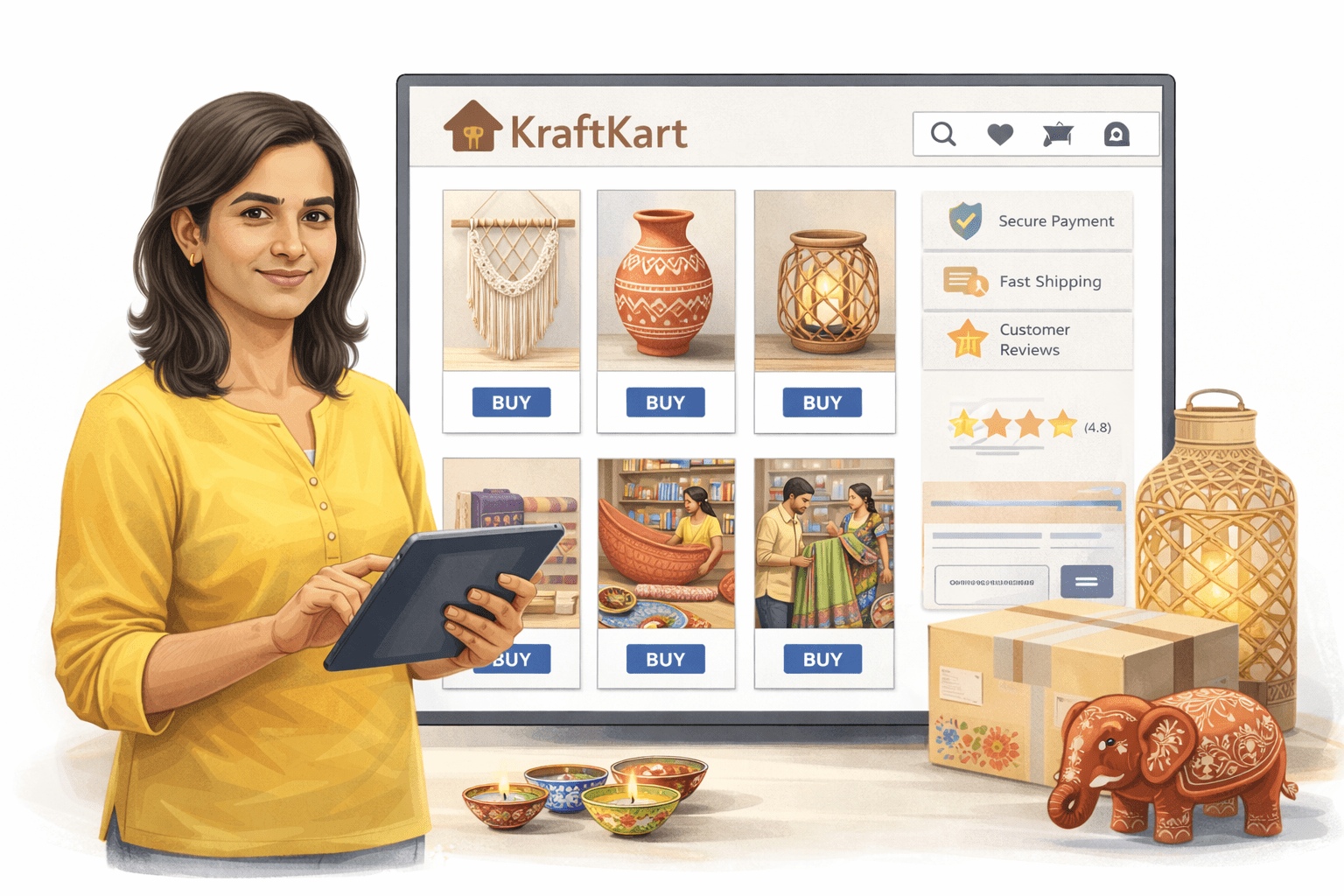
She tried running Shopping Ads but got an error requiring a Merchant Center account.
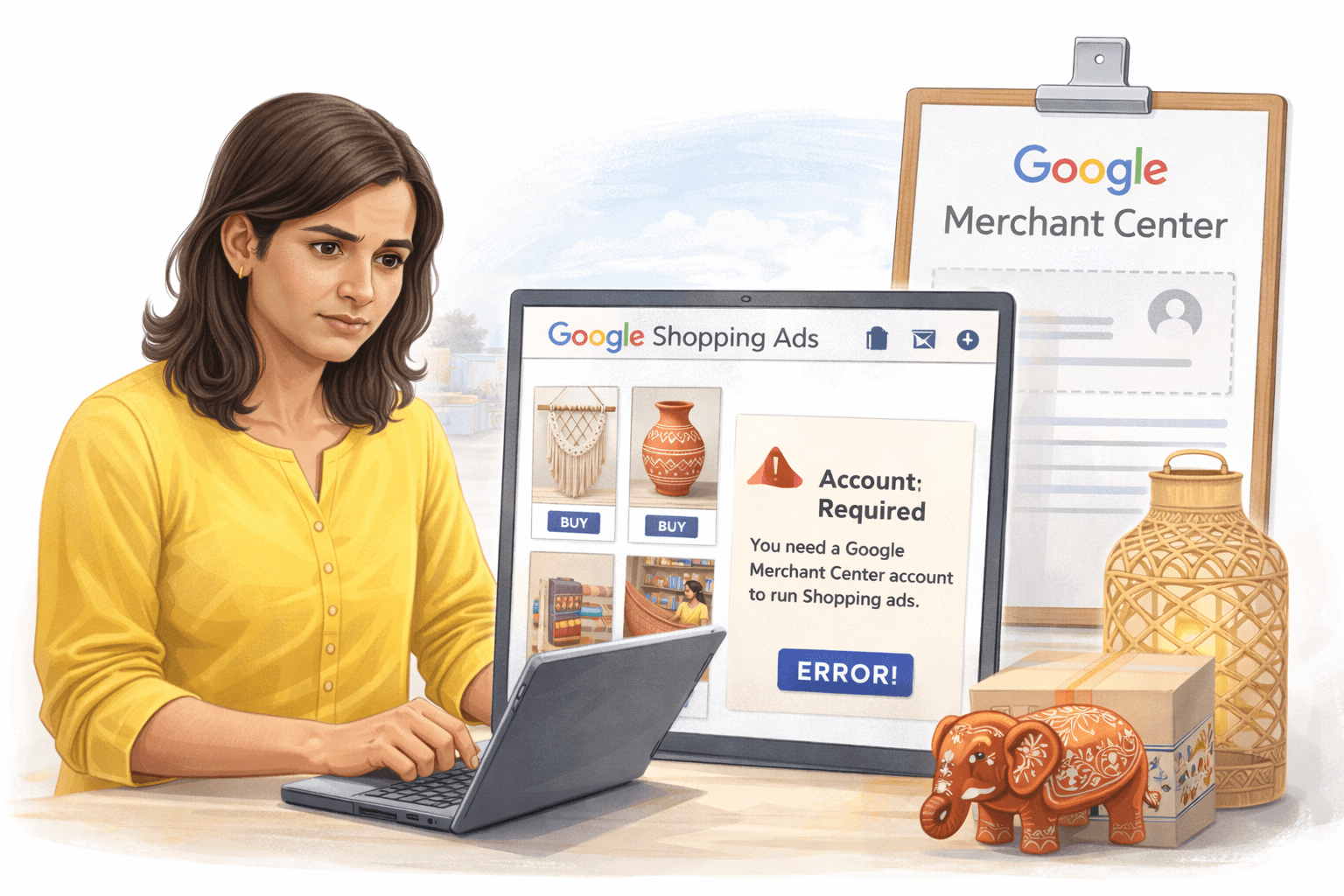
From Market Setup to Online Ads
With help, she followed key steps:
Created a Merchant Center account
Added business details
Verified her website
Set shipping and return policies
Linked it to Google Ads
Uploaded her products

After approval, her products appeared on Google and sales increased within weeks
From Market Setup to Online Ads
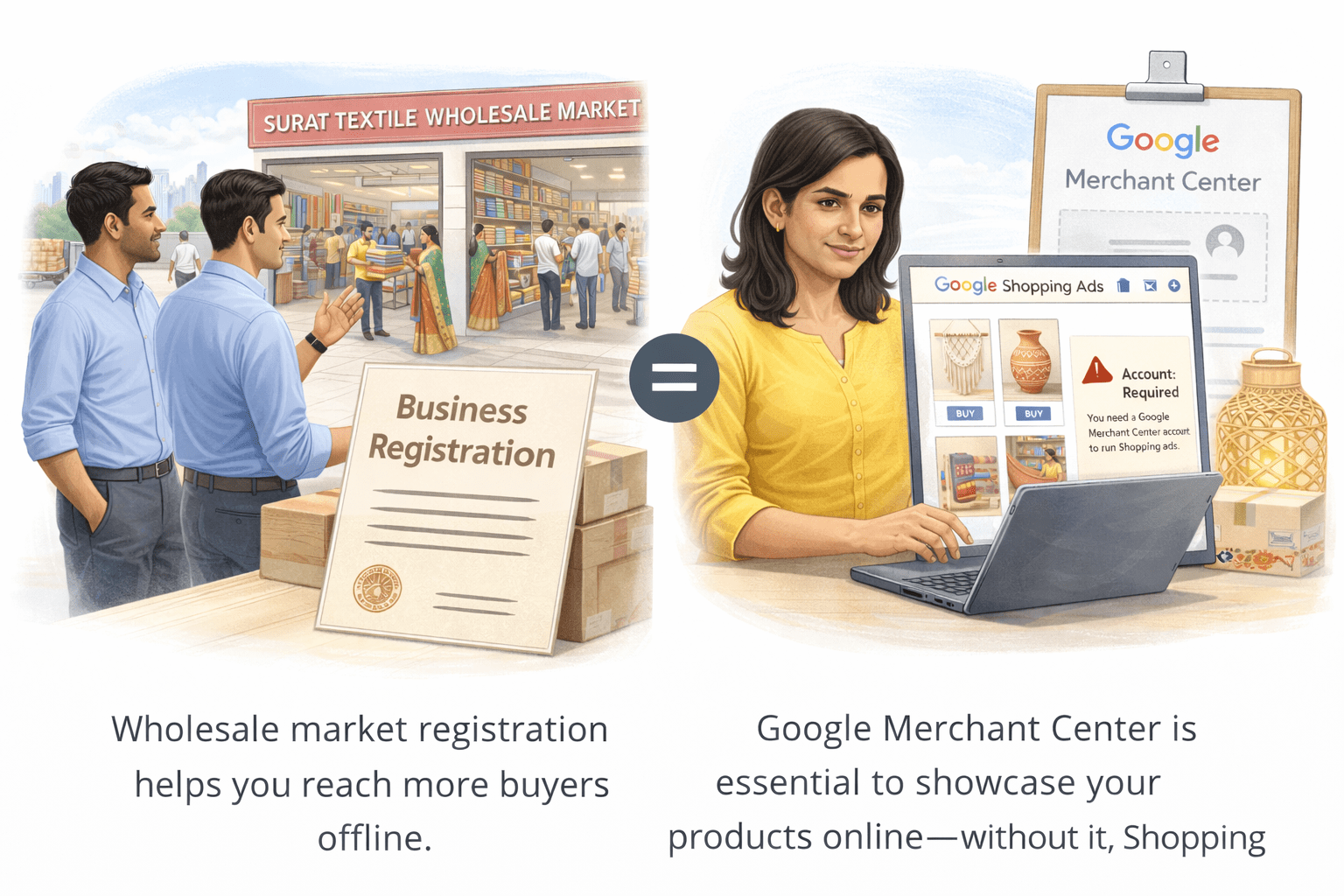
Moral :
Like market registration offline, Merchant Center is essential for running Shopping Ads online
What is Google Merchant Center?
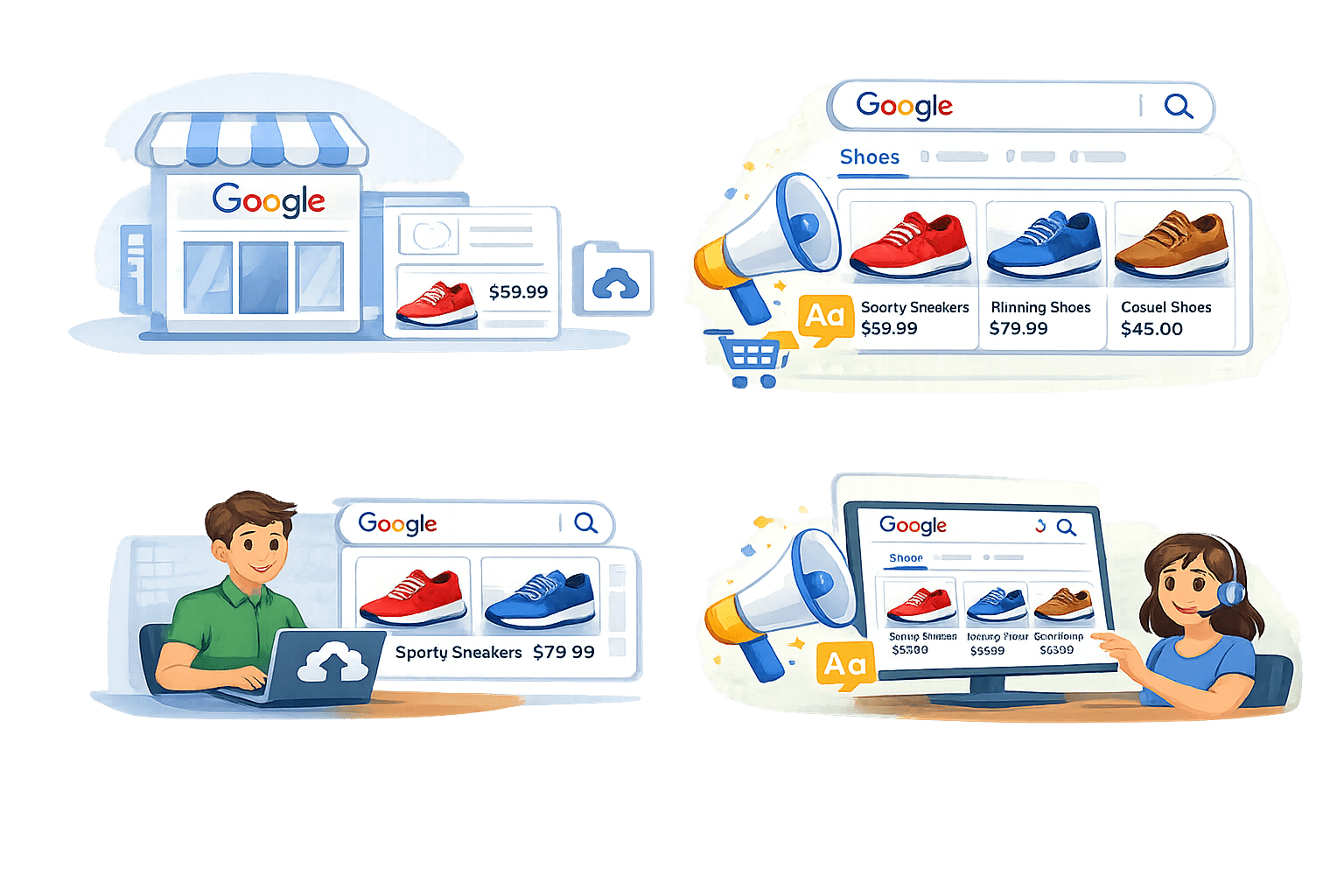
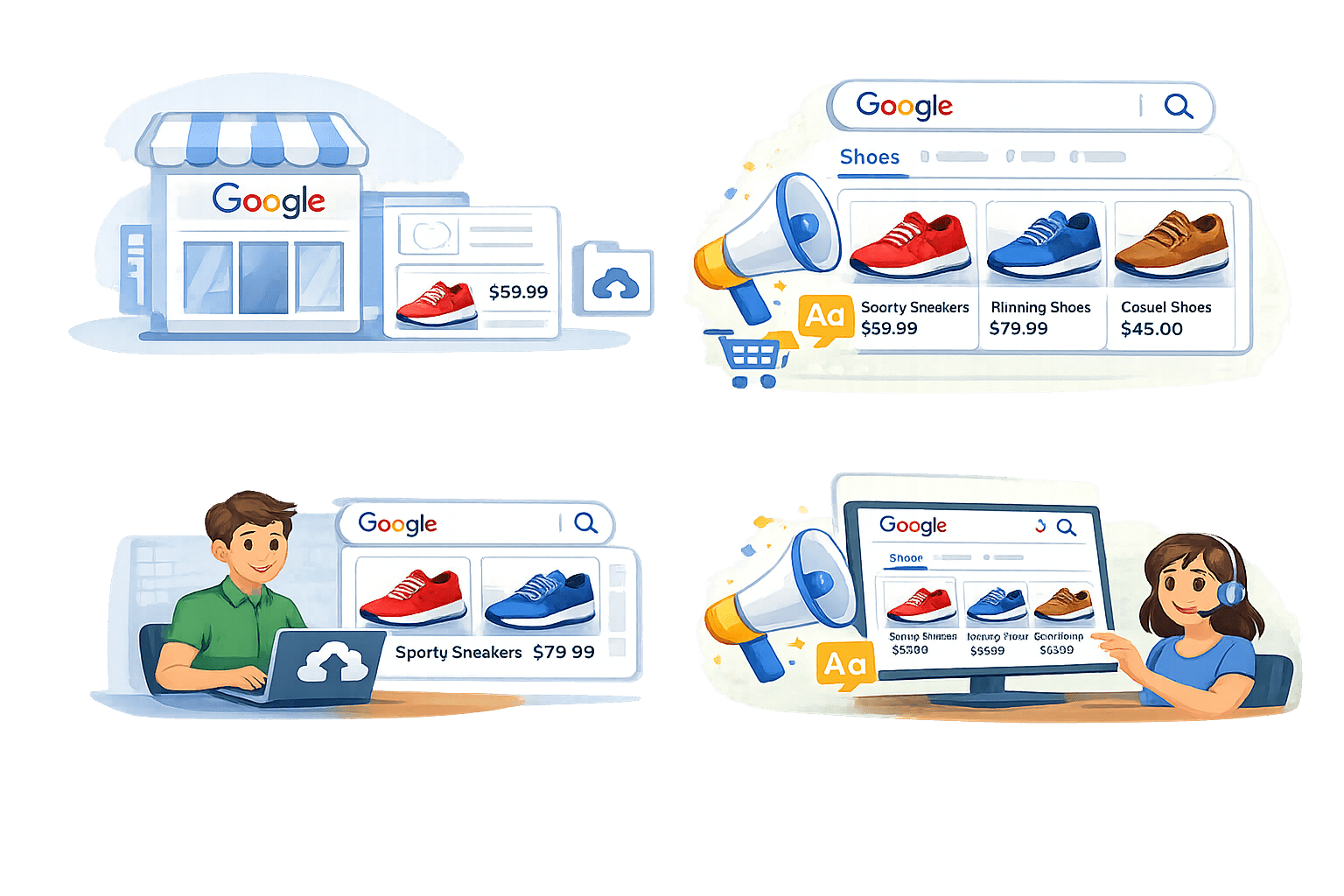
Google Merchant Center is a tool where you upload your product details so they can appear in Google Shopping ads.
Upload Your Product
Product Name :
Sports Sneakers
Price: $59.99
Photo : Upload Image

Your Product in Search Result
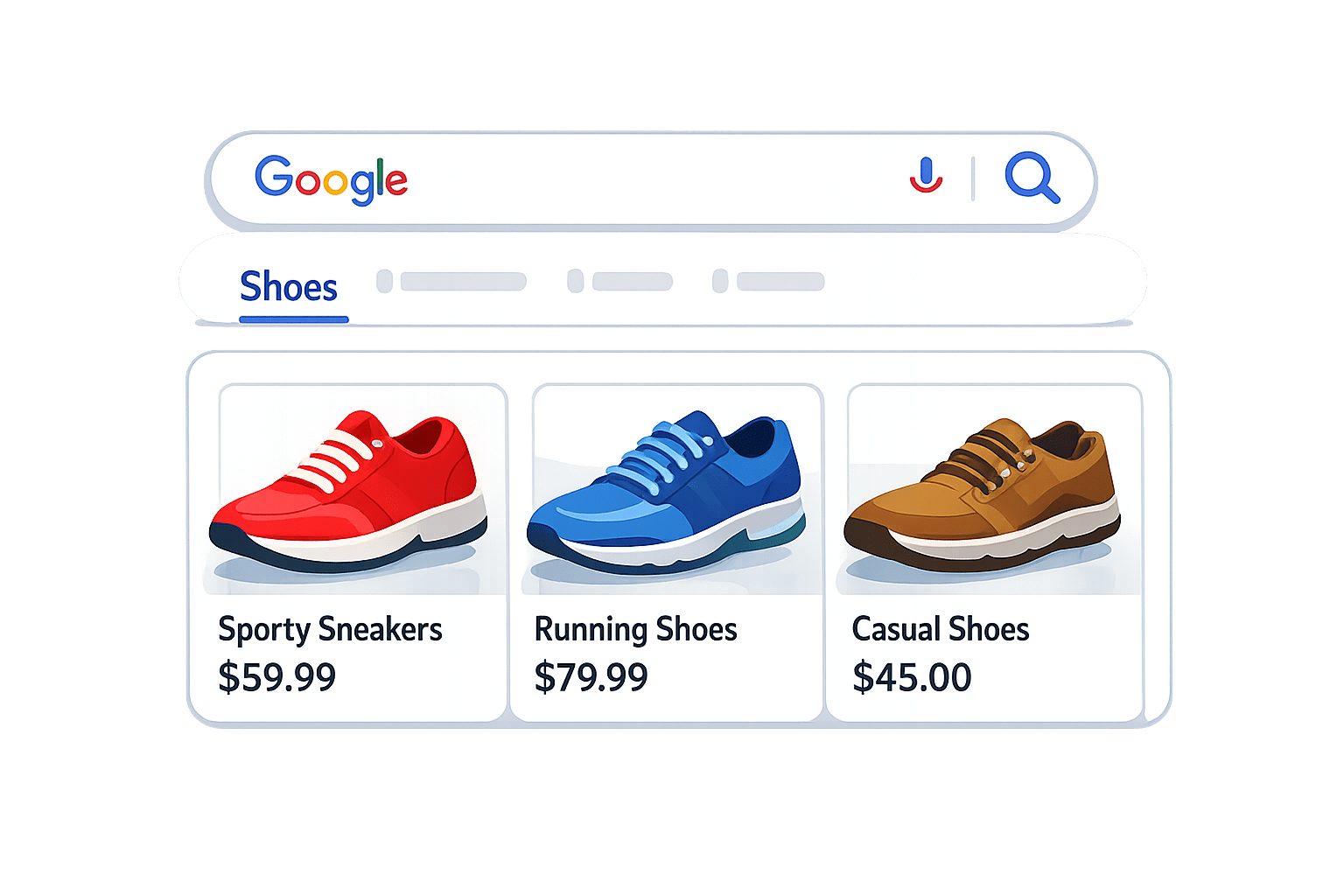
Send to Google Merchant Center
Example :
Merchant Center vs Google Ads — Key Difference
Google Ads
Google Ads =
Shows ads to customers
Google Ads = The platform that promotes those products
Merchant Center
Merchant Center =
Stores product information
Merchant Center =
Your product catalog
Creating a Google Merchant Center Account
Sign in with your Google account
02

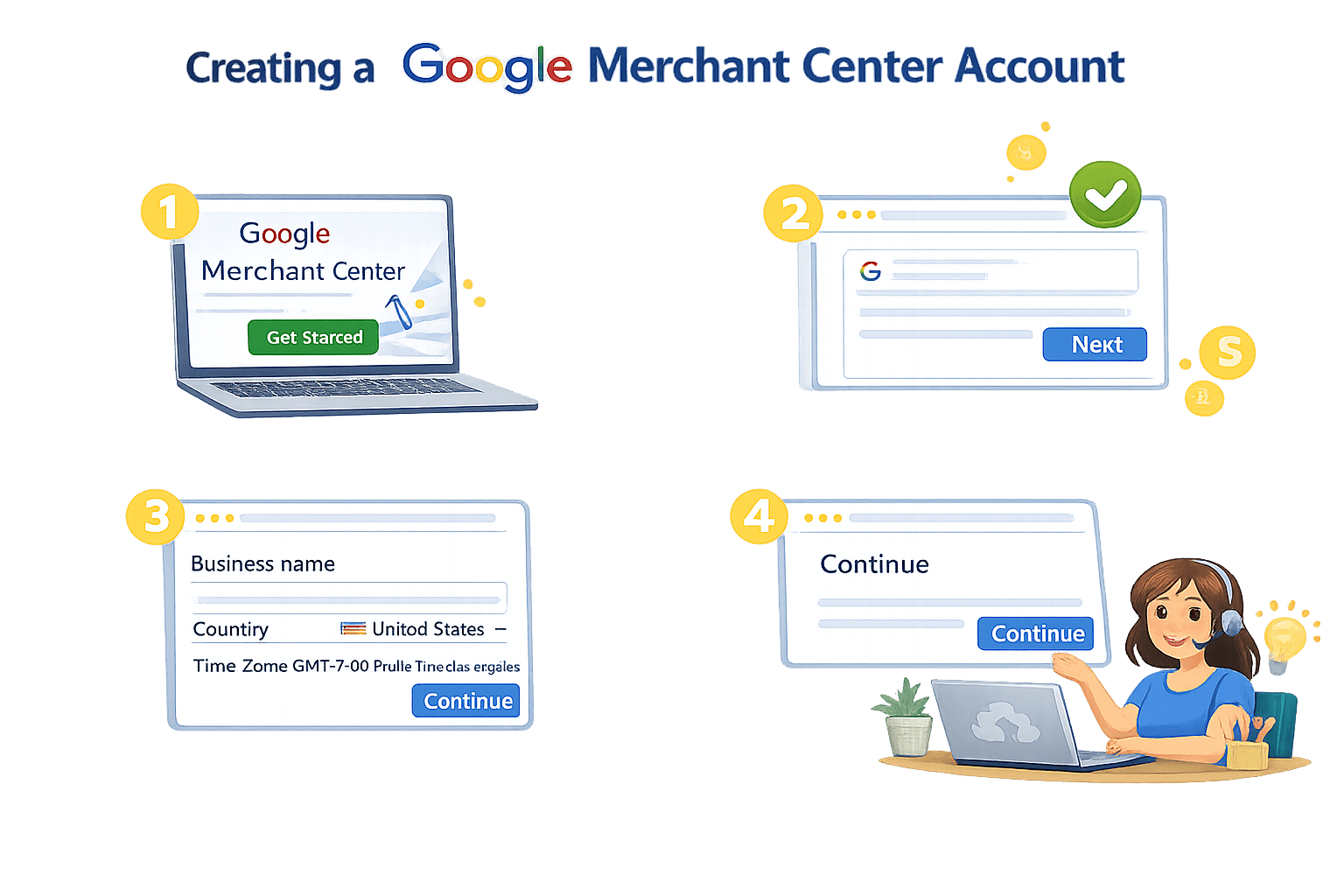
04
Click Continue

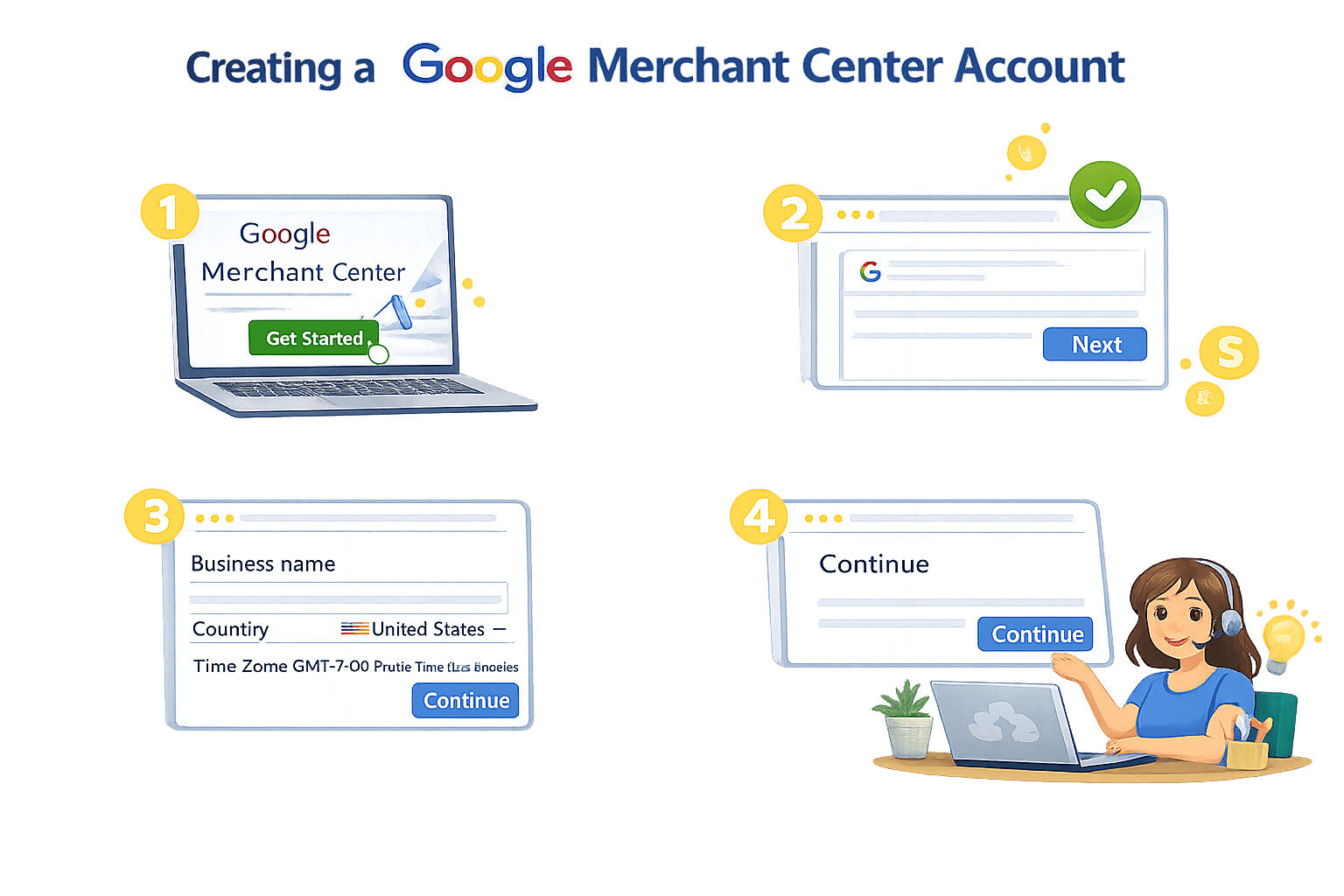
Enter:
- Business name
- Country
- Time zone
03

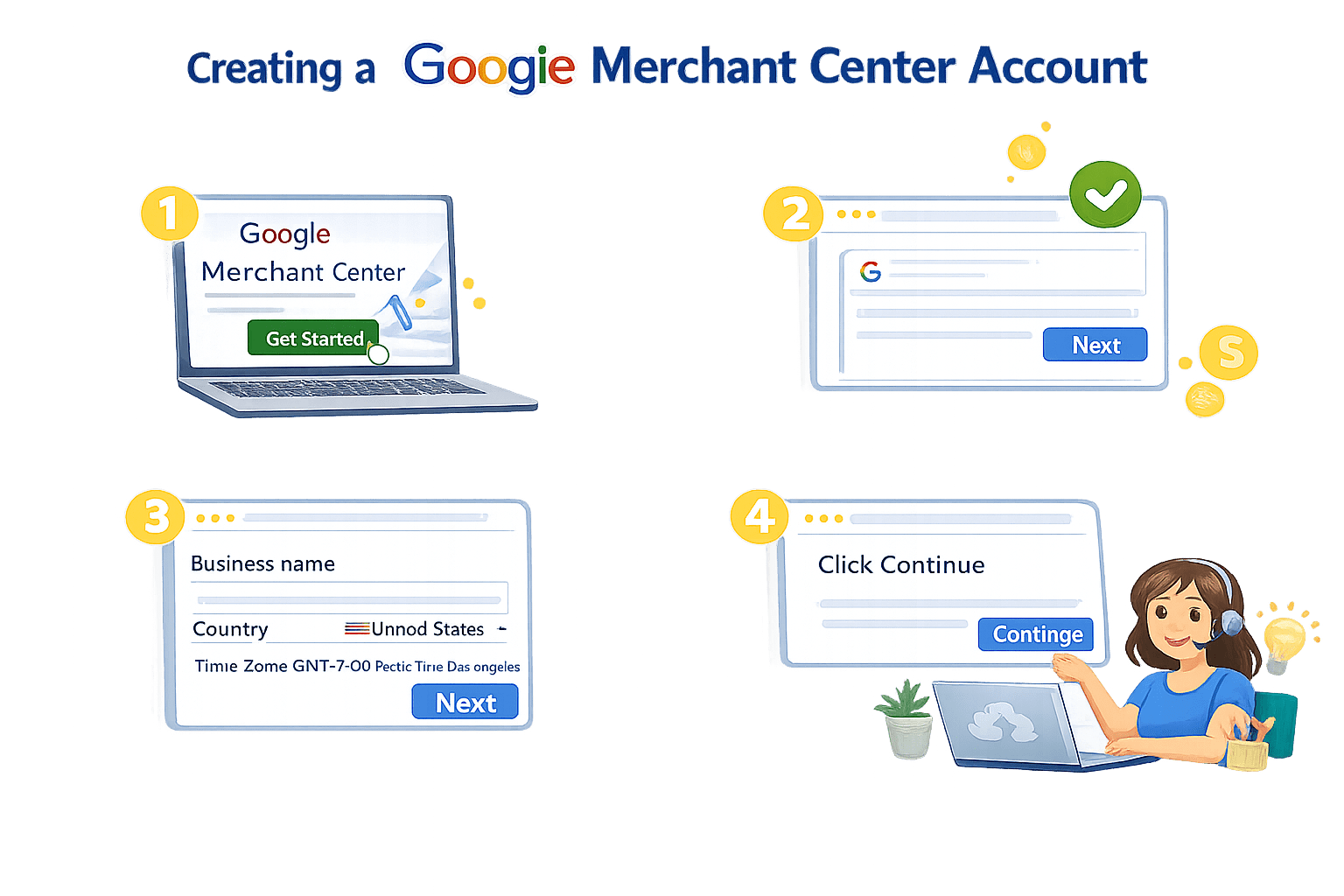

Lets create and setup the Google Merchant center, practically
Choose method:
- Google Sheets
- Upload file
2
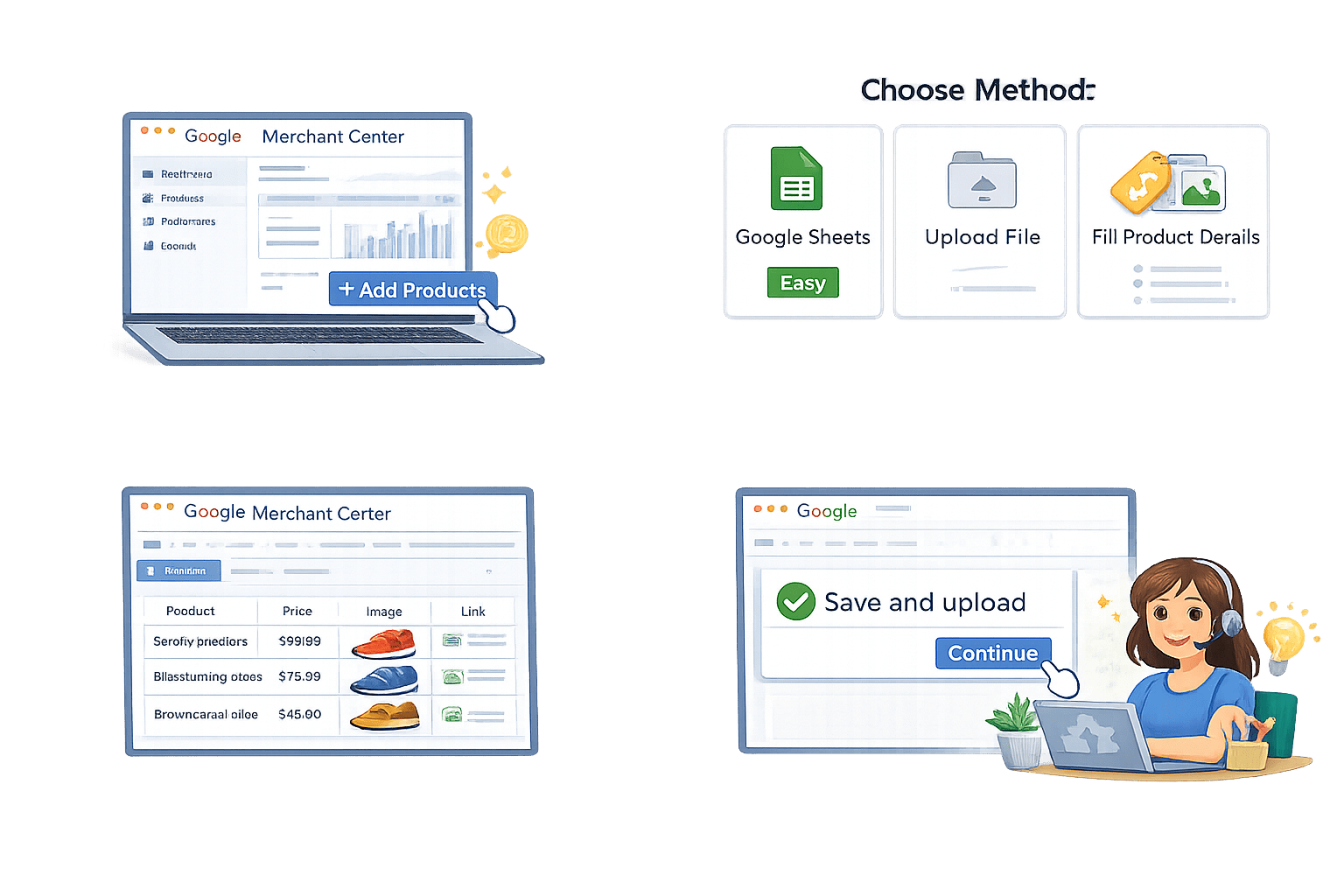
Fill product details (name, price, image, link)
3
Save and upload
4
After login, go to Dashboard
Click Add Products
1
Website Verification and Claiming
02.
Business Information → Website
Enter your website URL
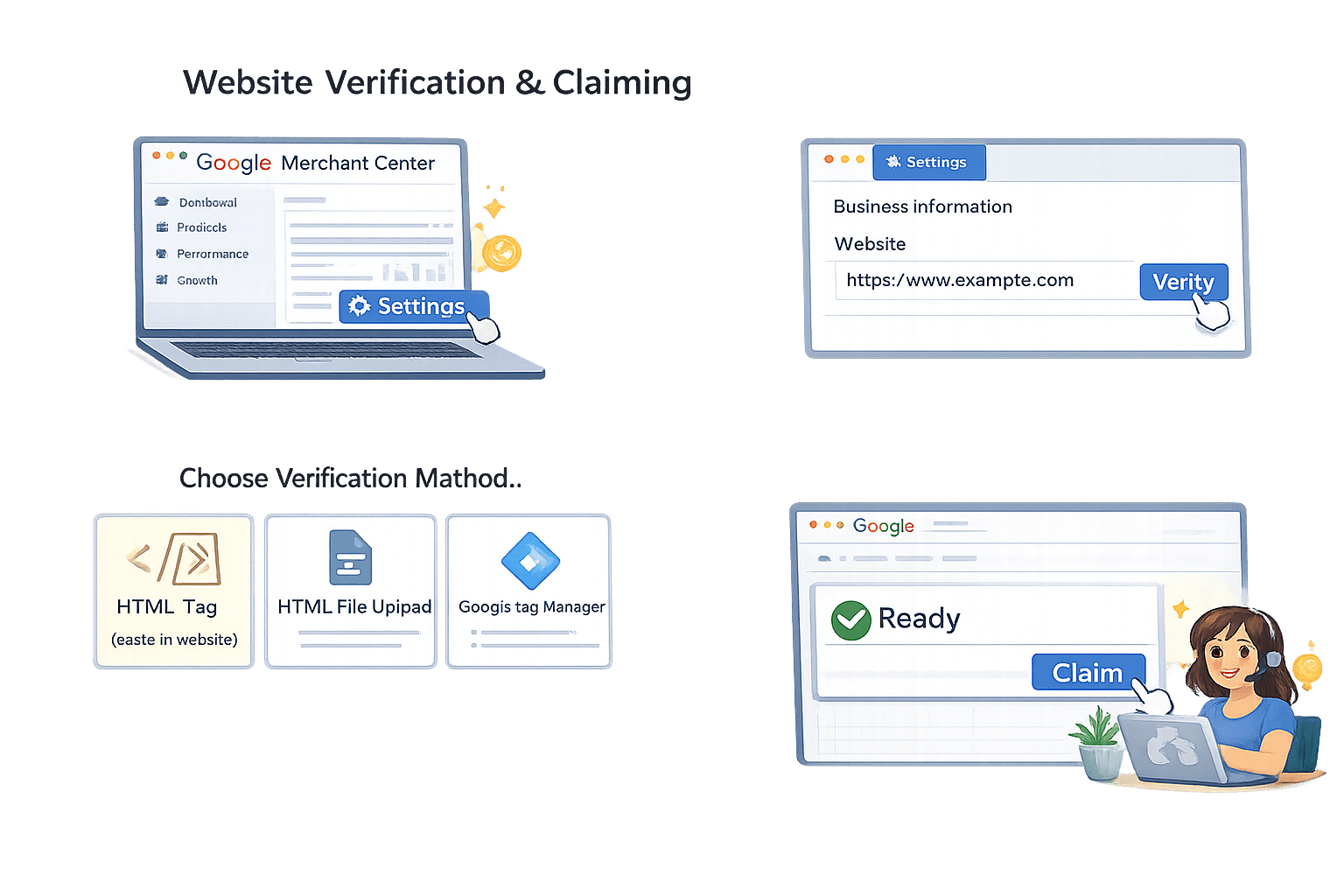
03.
Choose verification method:
HTML tag ,HTML file upload,
Google Tag Manager
Click Verify
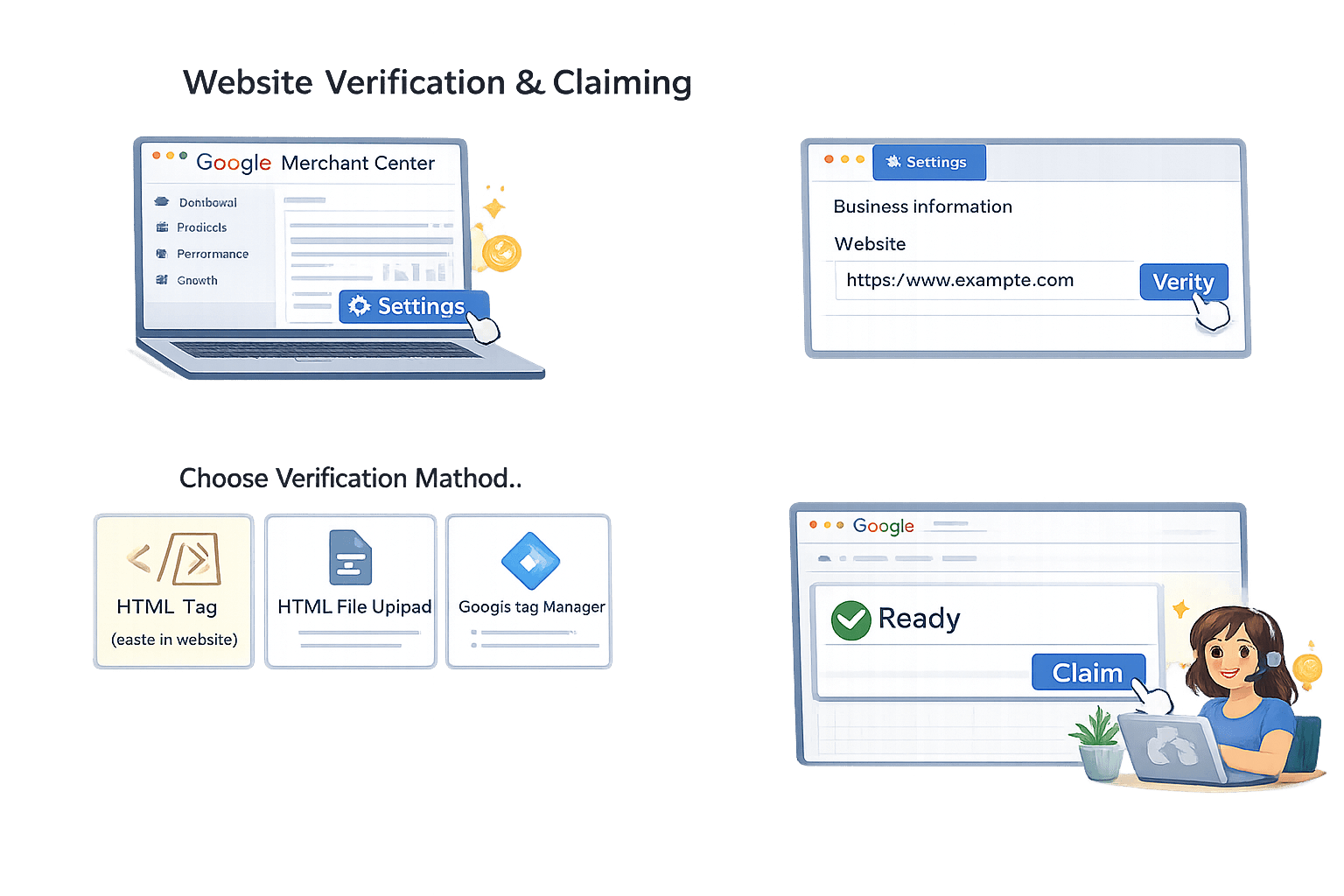
04.
Click Claim
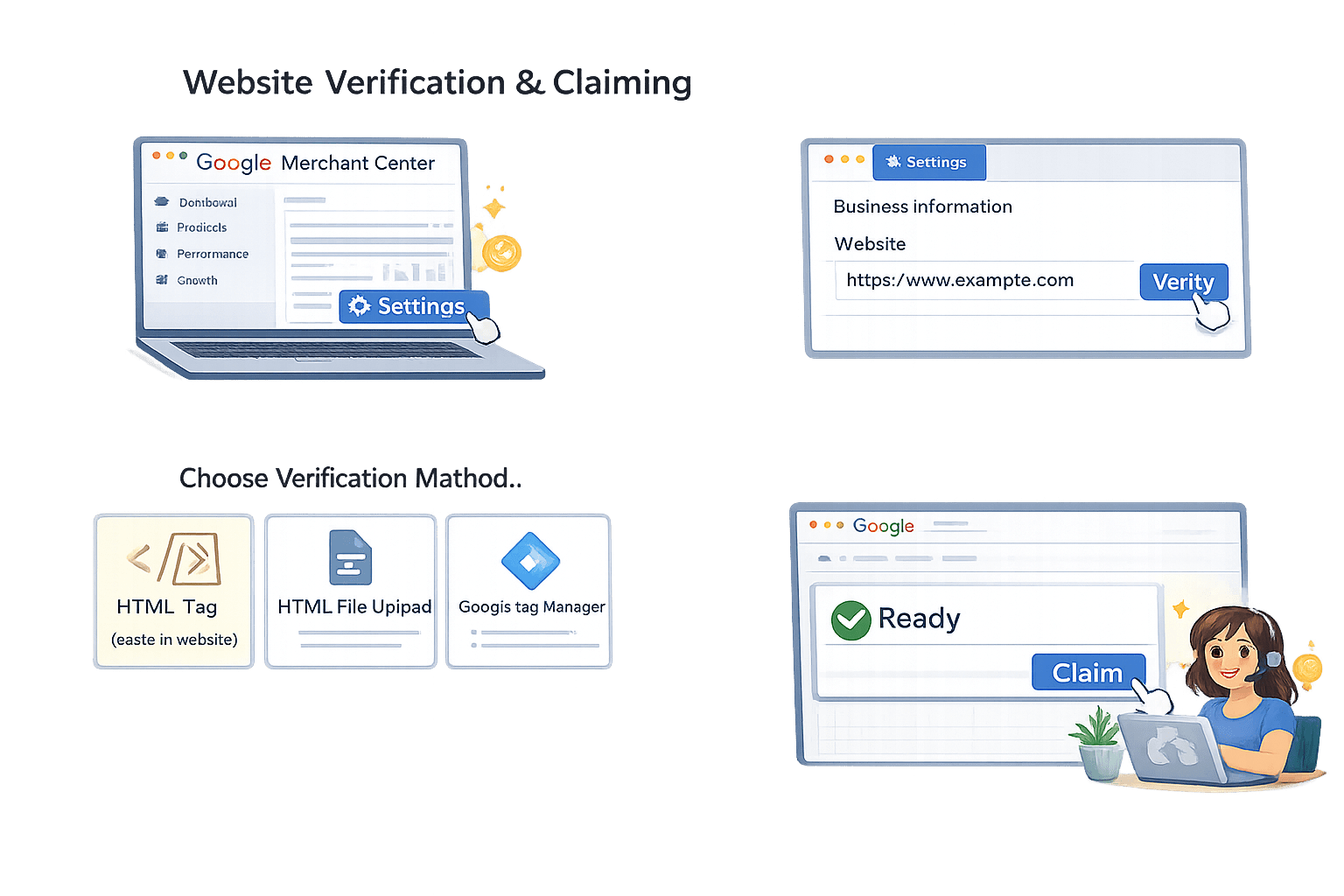
01.
Go to Settings
Business Information Setup
Text
Go to Settings
Business Information
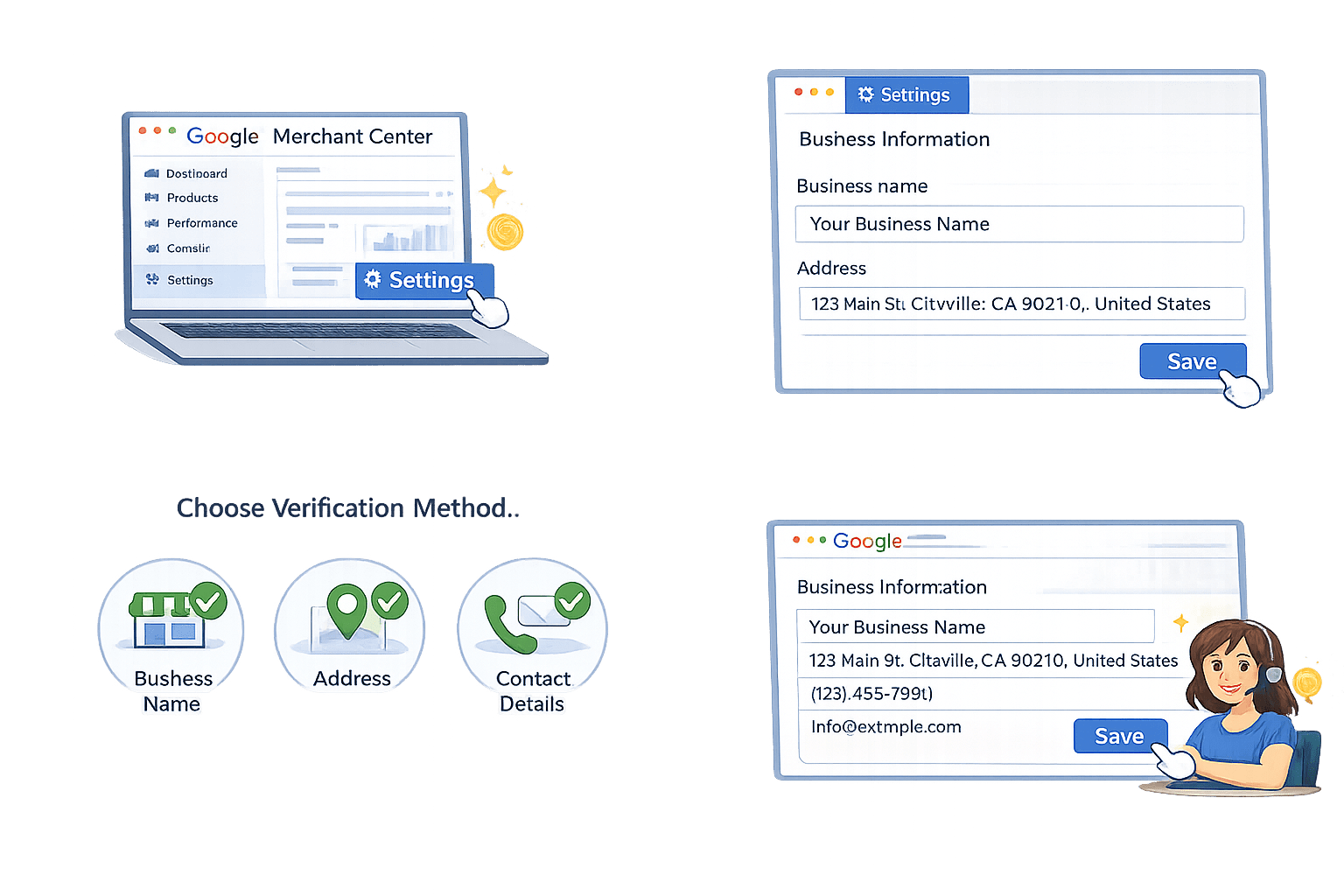
Step 01

Text
Save Changes
Step 04
Text
Choose Verification Method
Step 03
Text
Add:
Business name
Address
Contact details
Step 02



Shipping Settings
Enter:
Country ,Delivery time,
Shipping cost
Save
3.
Click Add Shipping Service
2.


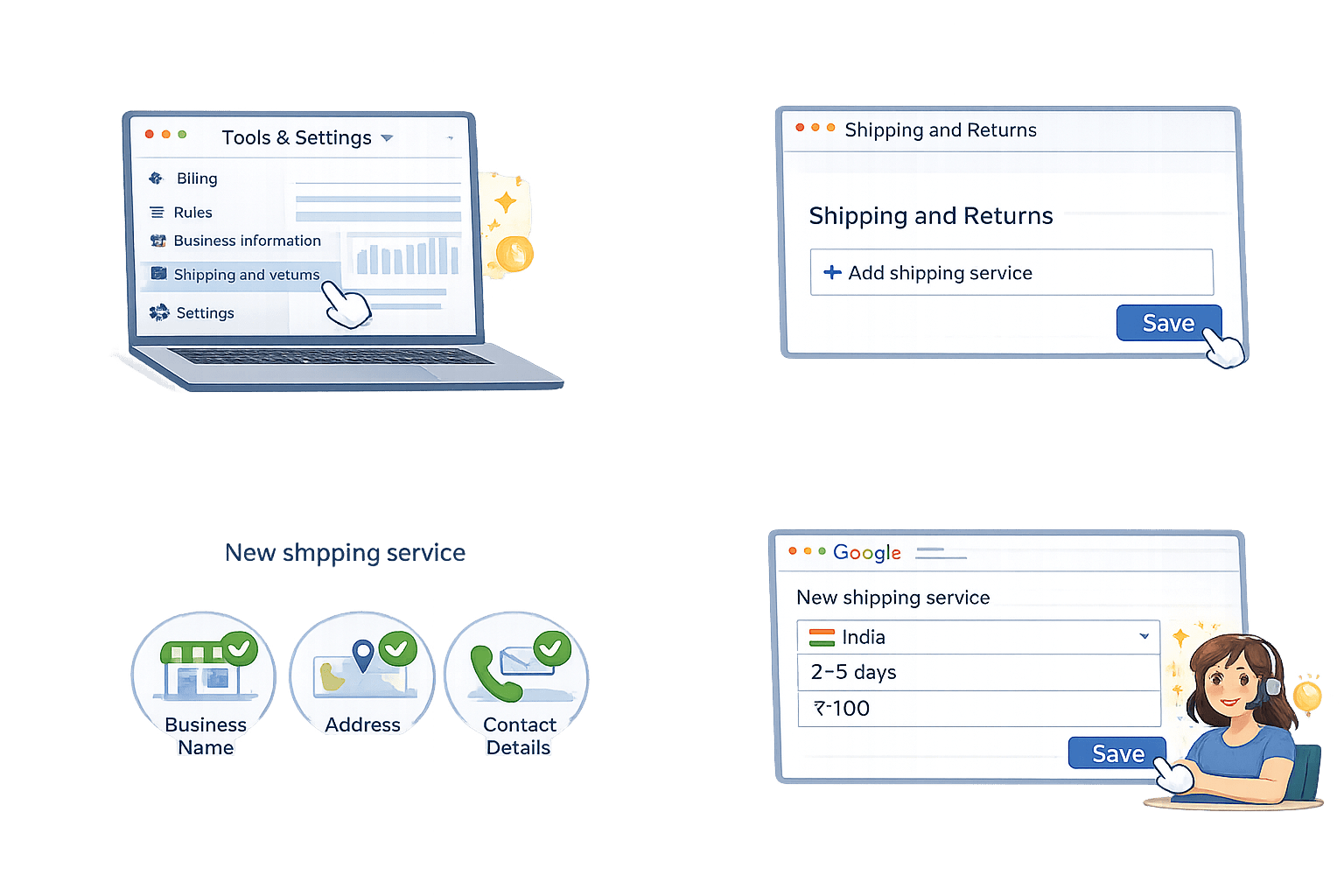
Go to Tools & Settings →
Shipping and Returns

1.
Return Policy Settings
Add return policy:
Return days (e.g., 7 days)
Conditions (unused, damaged, etc.)
Click Save
II.
III.
Go to Shipping and Returns section
I.
Linking Google Merchant Center to Google Ads

Click Google Ads
Enter your Google Ads Customer ID
Send link request
Open Google Ads → Accept request
Go to Settings → Linked Accounts
Summary
5
Errors like missing image or wrong price format must be fixed quickly
4
Link Merchant Center with Google Ads to run product ads
3
Setup includes account creation, website verification, and feed upload
2
Product Feed is a file with product details like price, image, availability
1
Create a Merchant Center account with your & Googlelogin business info.
Quiz
Rohan needs to verify his website in Merchant Center. Which method can he use?
A. Submit business documents
B. Use HTML tag/file, Tag Manager, or Analytics
C. Call Google support
D. Pay a verification fee

Quiz
Rohan needs to verify his website in Merchant Center. Which method can he use?
A. Submit business documents
B. Use HTML tag/file, Tag Manager, or Analytics
C. Call Google support
D. Pay a verification fee
