StreamCheck Project Initiation & Media Platform Workflow

Business Scenario
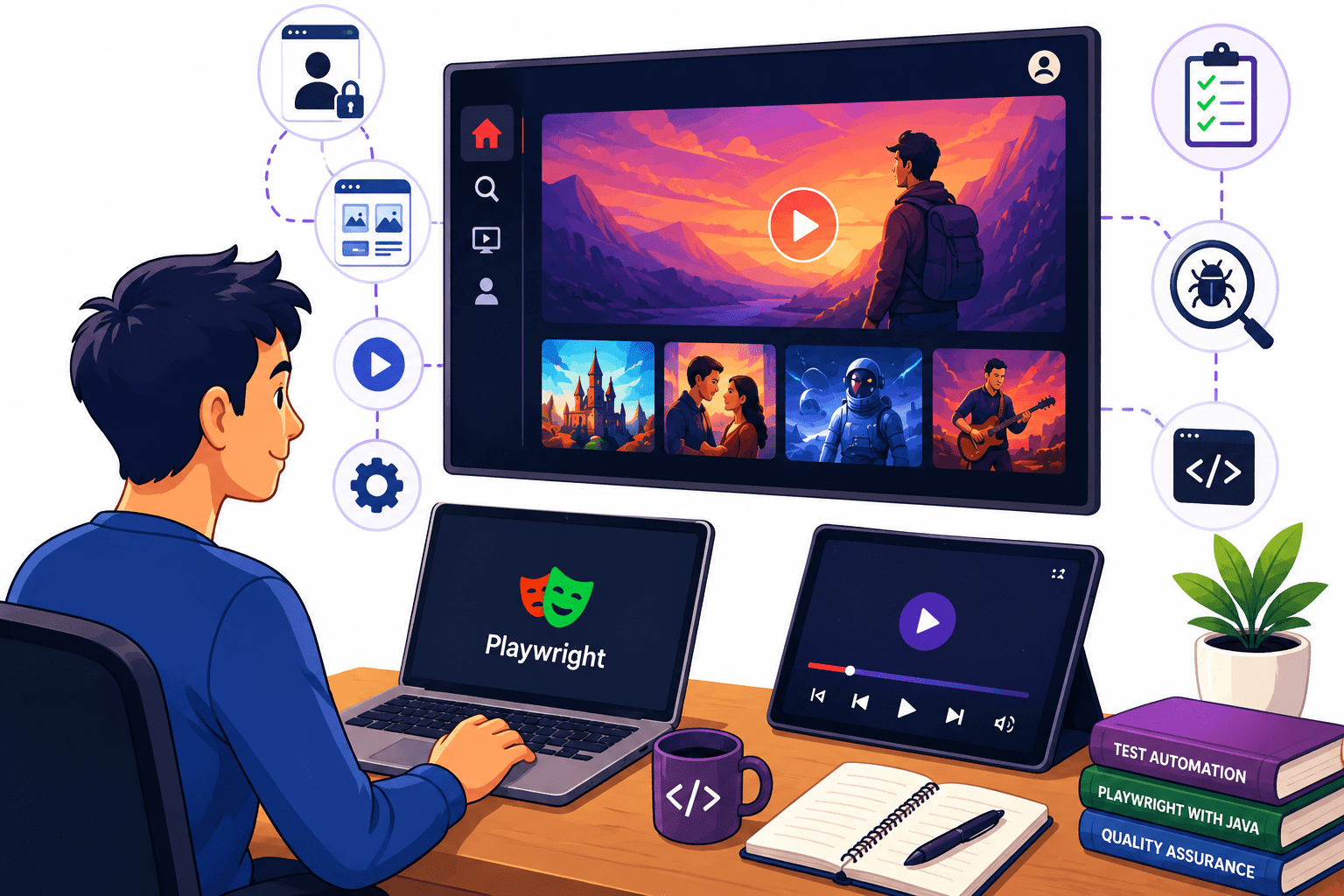
Congratulations! You have recently joined StreamCheck Media Pvt. Ltd. as an Automation Test Engineer. As part of the QA team, you are responsible for ensuring the quality and reliability of the StreamCheck media streaming platform through automation testing.
StreamCheck allows users to log in, browse media content, play videos, and control playback.Before developing automation scripts, it is important to understand the application's workflow, key modules, and user interactions.

PW09-RAW STEPS
TASK 1
Create a Threat-Hunting Hypothesis
1
Search Security Logs
2
Document the Threat Hunt
6
Map the Finding to MITRE ATT&CK
5
Investigate the Finding
4
Identify Suspicious Patterns
3
Task 3: Pass Query and Path Parameters
Task 1: Create a Threat-Hunting Hypothesis
Task 2: Search Security Logs
Task 3: Identify Suspicious Patterns
Task 4: Investigate the Finding
Task 5: Map the Finding to MITRE ATT&CK
Task 6: Document the Threat Hunt
| Field | Example |
|---|---|
| Hunt ID | TH-001 |
| Hypothesis | Possible account brute force |
| Log Source | Authentication Logs |
| Finding | Multiple failed logins |
| Source IP | 192.168.1.50 |
| Affected User | Test User |
| MITRE Technique | T1110 |
| Result | Suspicious |
| Recommended Action | Investigate/monitor account |
Task 1: Understand Normal Behavior
Task 2: Identify Abnormal Behavior
Task 3: Investigate the Anomaly
Task 4: Detect Without Using a Signature
Task 5: Apply a Defensive Response
Task 6: Document the Finding
| Field | Example |
|---|---|
| Finding ID | BEHAV-001 |
| Behavior | Unusual Login |
| User | Test User |
| Normal Behavior | Login during working hours |
| Observed Behavior | Login at unusual time |
| Severity | Medium |
| Analysis | Behavior differs from baseline |
| Action | Account investigated |
| Status | Investigating |
TASK 2
Open the StreamCheck Project
1
Add Log Messages
2
Record Results
10
Analyse the Failure
9
Open the Screenshot Folder
8
Check Console Logs
7
Run the Failed Test
6
Configure Screenshot Capture
5
Create a Failure Scenario
4
Execute the Test
3
TASK 3
Open the StreamCheck Project
1
Create a Failure Scenario
2
Document Findings
10
Re-Execute the Test
9
Correct the Issue
8
Identify the Root Cause
7
Check the Screenshot
6
Review Console Logs
5
Check the Test Report
4
Execute the Test
3
TASK 4
Execute the Test Suite
1
Open the Test Report
2
Save the Documentation
10
Prepare Final Test Summary
9
Add Observations
8
Record Failure Details
7
Create a Result Summary Table
6
Review Screenshots
5
Review Logs
4
Collect Execution Details
3
PW10-RAW STEPS
TASK 1
Open the StreamCheck Application
1
Identify the Automation Requirement
2
Record Results
10
Compare with Manual Script
9
Modify and Run the Script
8
Generate Another Script
7
Execute the Generated Script
6
Update Application Details
5
Copy the Generated Script
4
Generate a Prompt in ChatGPT
3
TASK 2
Open the StreamCheck Project
1
Create a New Test Class
2
Document Results
10
Review Copilot Suggestions
9
Re-Run the Test
8
Add a New Feature Using Copilot
7
Execute the Script
6
Generate Validation Logic
5
Generate Search Functionality
4
Generate Login Code
3
TASK 3
Open the StreamCheck Project
1
Execute the Test Suite
2
Use AI for Further Improvement
10
Re-Run the Failed Test
9
Apply the Suggested Fix
8
Verify the Failed Element Manually
7
Review AI Suggestions
6
Ask AI to Analyze the Error
5
Copy the Failure Details
4
Identify Failed Test Cases
3
Document the Debugging Activity
12
Execute the Complete Test Suite
11
TASK 4
Run the Existing Test Suite
1
Find Slow Test Cases
2
Execute Optimized Suite
10
Remove Duplicate Steps
9
Run Tests in Parallel
8
Enable Parallel Execution
7
Reuse Login Instead of Logging In Every Test
6
Improve Locators
5
Replace Fixed Waits
4
Check for Fixed Waits
3
Record Performance Improvement
12
Analyze Results
11