

Content ITV PRO
This is Itvedant Content department
1. Extended Admission Guidelines
Extended Admission allows learners to join an ongoing batch under specific conditions. The following protocol must be followed:
Eligibility Criteria
Permissible Period:
Extended admissions are allowed up to the completion of Module 1
Extra Session Instructions
Application Process
1. The Career Guide (CG) must inform all relevant parties about learners applying for extended admission in an ongoing batch.
2. The learner must complete the Extended Admission Form.
3.The form must include signatures from the:
a) Learner
b) Branch Manager (BM)
c) Career Guide (CG)
4. The completed form must be submitted to the concerned faculty for academic evaluation.
Extra Session Instructions
Faculty's Role
a) The faculty has the discretion to approve or reject extended admission based on:
1. Academic feasibility
2. Current batch dynamics
b) If approved, the faculty must:
1. Plan appropriate cover-up sessions to address missed topics.
2. The Plan details to be mentioned on the extended form.
3. Trainer & CAH/ABM to sign the Extended form.
4. Coverup Details to be shared with the learners.
5. Monitor and record the learner’s attendance during cover-up sessions.
Extra Session Instructions
Execution & Support
Once approved by the faculty, the Training Team is responsible for:
1) Executing the cover-up plan
2) Providing follow-up support to ensure learner progress
2. Unauthorized Attendance Escalation
1. Immediately escalate the issue.
2. Send an email to:
If a learner begins attending sessions without formal approval or prior intimation, the faculty must:
3. Cover-up Attendance Protocol
Cover-up sessions are special classes conducted to compensate for missed topics due to extended admission
Steps to Mark Cover-up Attendance
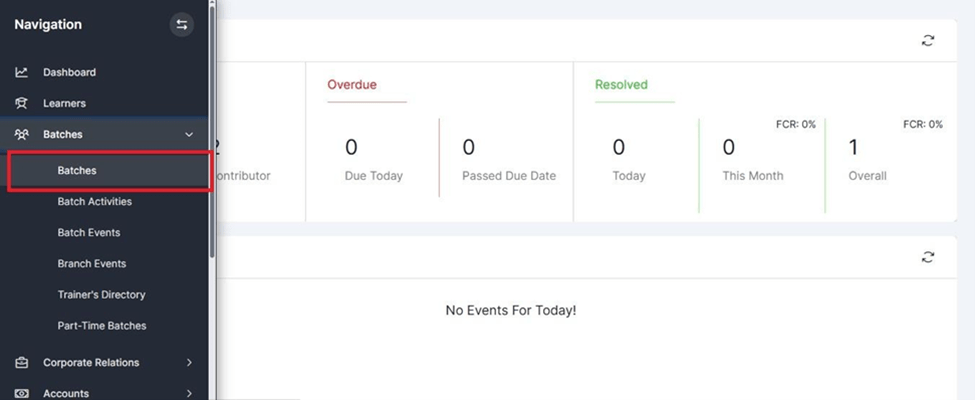
1. Open the Batch:
Navigate to the "Batches" section
Click on the batch number that needs to be updated
Cover-up Attendance Protocol
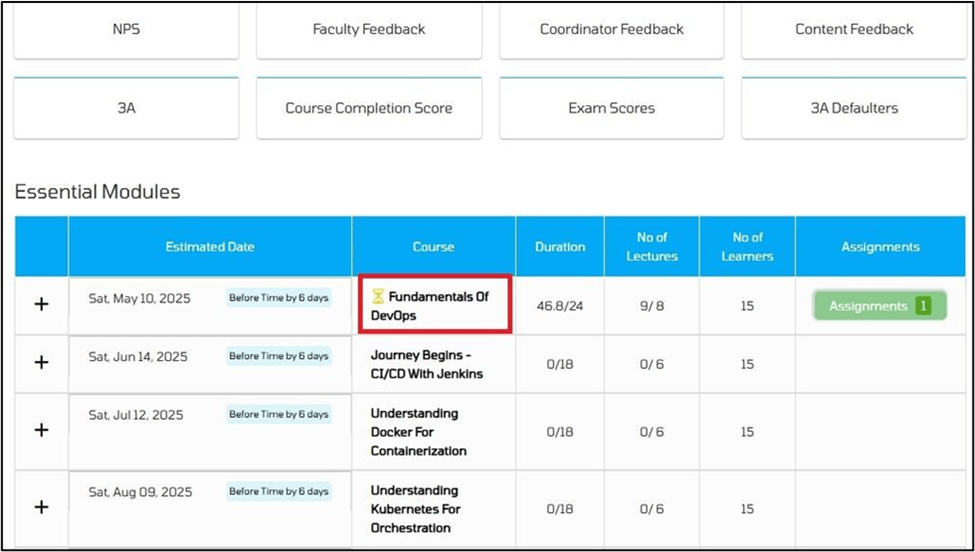
2. Access the Module
Click on the module for which the session was conducted or needs to be updated
Cover-up Attendance Protocol
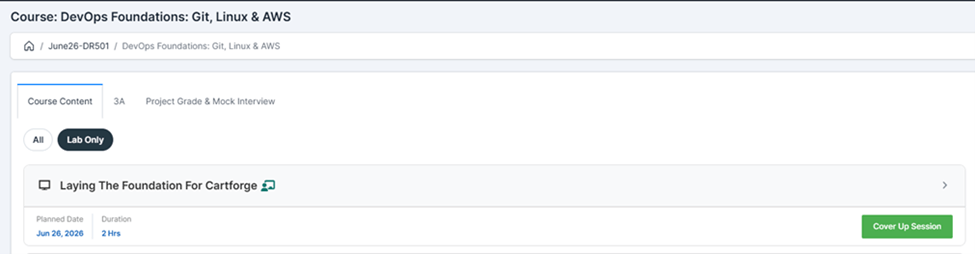
3. Coverup Lecture
Trainers must complete lab training for missed modules as per the prescribed curriculum.
Before each session, click "Coverup Session" to ensure proper tracking.
Conduct lab sessions in the prescribed sequence to maintain consistency and a structured learning experience.
Cover-up Attendance Protocol
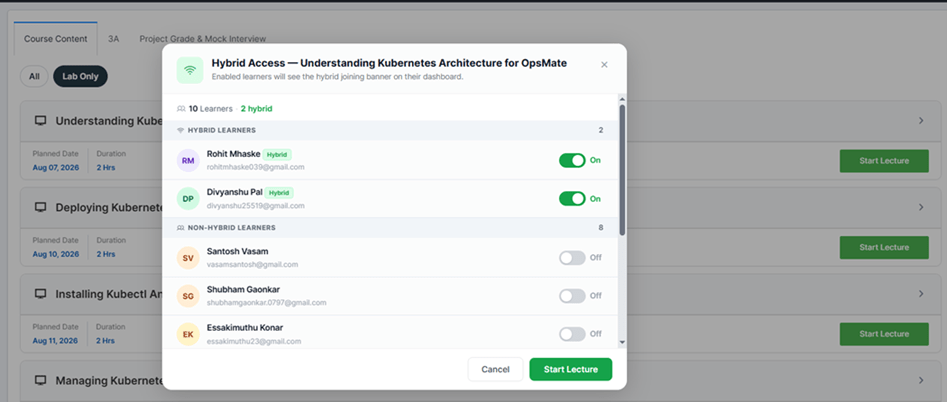
After clicking "Start Lecture", the Hybrid Access pop-up appears.
Review learners listed under Hybrid and Non-Hybrid categories.
Verify or update Hybrid Access using the toggle for each learner.
Click "Start Lecture" in the pop-up to begin the session.
Only learners with Hybrid Access enabled can join the session remotely.
4. Hybrid Access – Session Initiation Guidelines
Hybrid Session Control Window
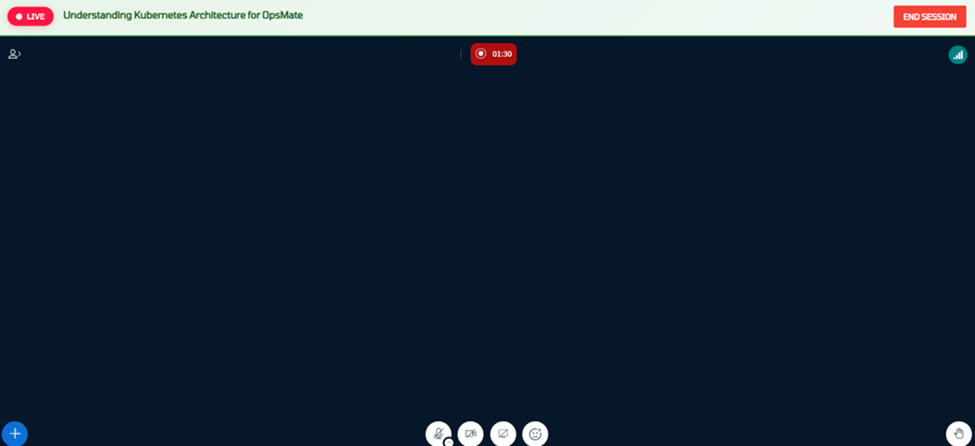
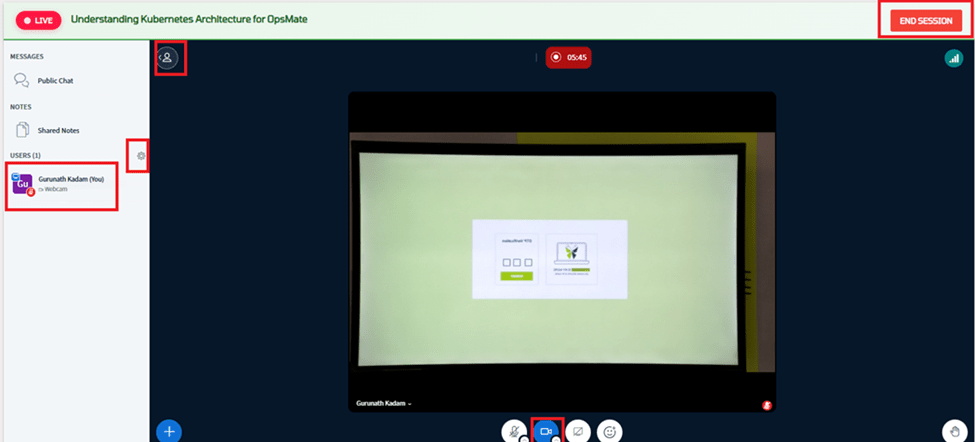
Click on "Start Lecture" it opens the Hybrid Session Control Window in a new browser tab for managing the live hybrid session.
The trainer can perform the following activities from Hybrid Session Control Window :
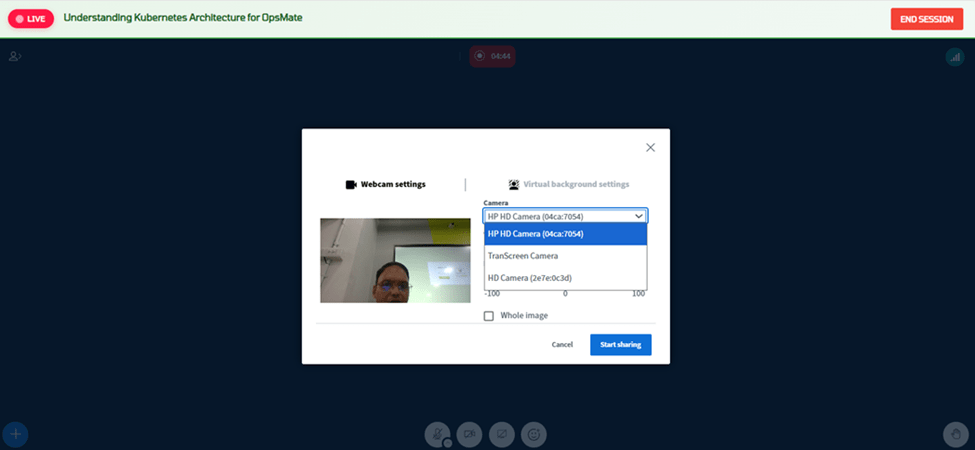
Webcam Configuration
Note: Trainers should verify that the correct webcam is selected before starting the lecture to ensure learners receive a clear video feed.
User List
Recommendation: Trainers should periodically review the User List during the session to ensure active learner participation and promptly address any questions raised.
Cover-up Attendance Protocol
Note :
For cover-up sessions, OCR is not required. Therefore, there is no need to follow the OCR-related steps for starting or ending the session.
Once the cover-up session has been completed for both offline and online learners, kindly end the Hybrid Live Session and mark the learners' attendance manually.
Please refer to the steps below for the process of marking manual attendance.
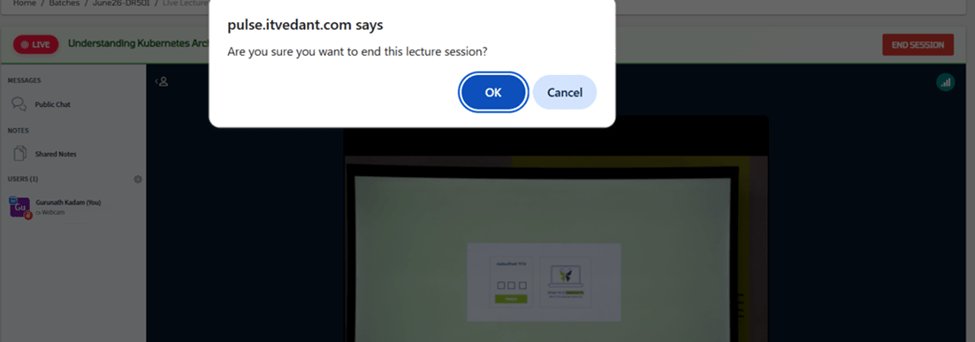
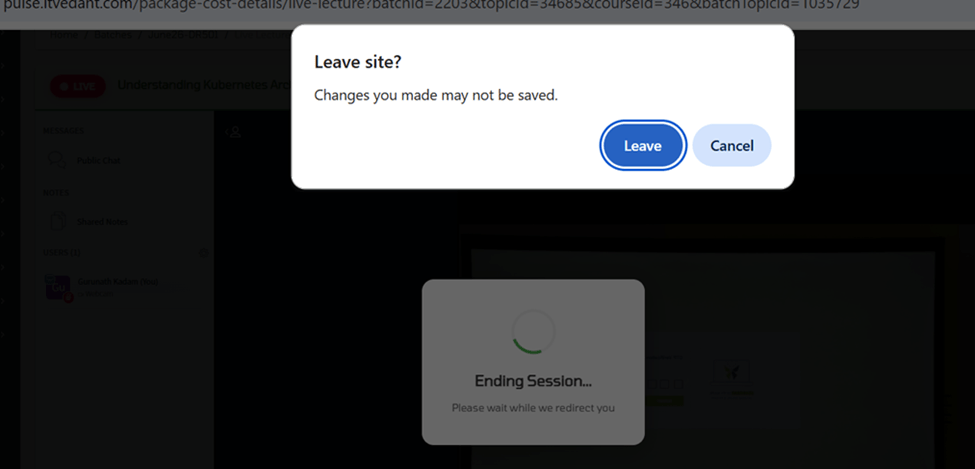
Ending the Live Session
Important: Trainers should end the session only after completing the lecture and addressing all learner queries to ensure the session is recorded successfully.
Ending the Session:
Cover-up Attendance Protocol
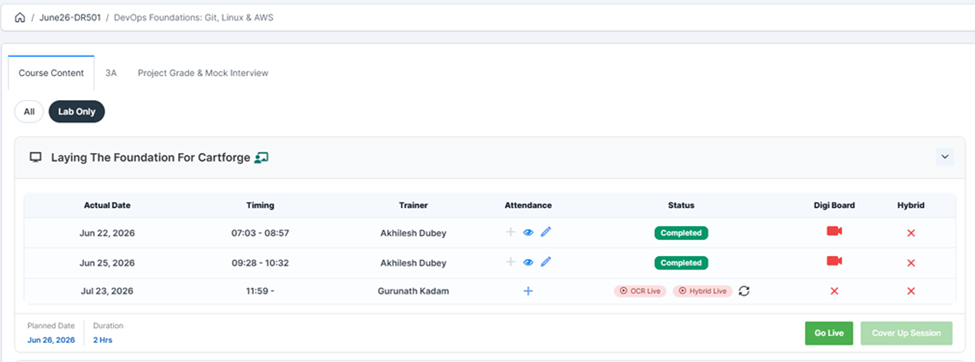
Now you will be redirected to batch schedule screen as shown below
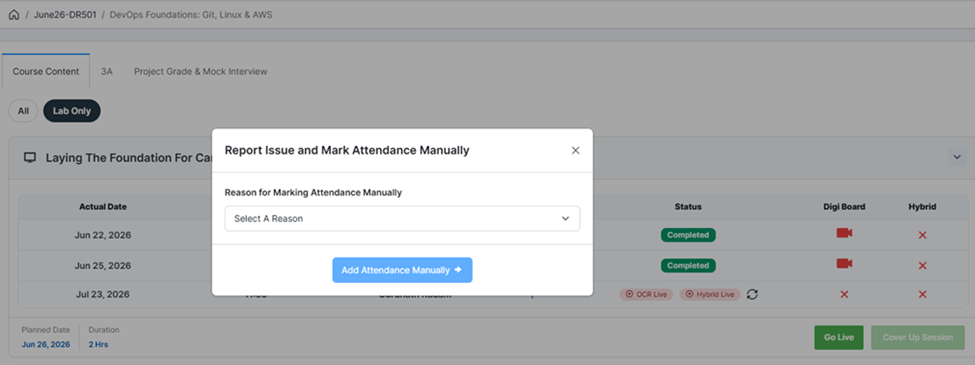
2. A pop-up window will appear, prompting you to select the appropriate reason for marking the attendance manually
1. Click the "+" (Plus) icon to mark the attendance for the cover-up session.
Cover-up Attendance Protocol
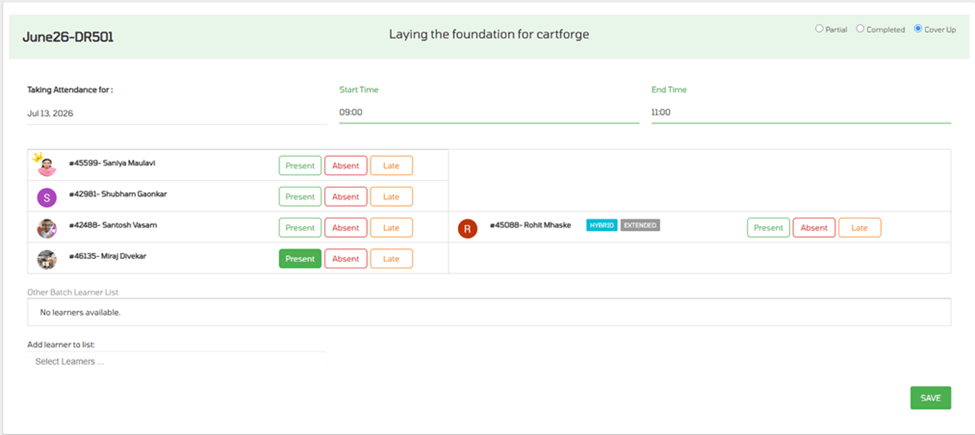
5. a) Enter the Start time & End Time of coverup session
b) Mark the learners who attended the session by selecting the appropriate attendance status (Present, Absent, or Late)
c) Save the attendance.
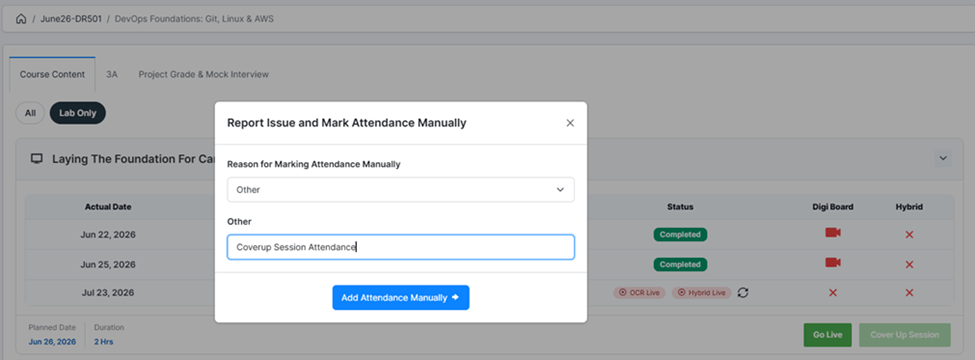
4. From the Reason drop down list :
a) Select 'Other' as the category
b) In Other remark field, enter "Coverup Session Attendance"
c) Click "Add Attendance Manually" to save attendance record
Cover-up Attendance Protocol
Note:
For learners who did not attend the cover-up session, do not select any attendance status (Present/Absent/Late). Leave their attendance field unchanged
Cover-up Attendance Protocol
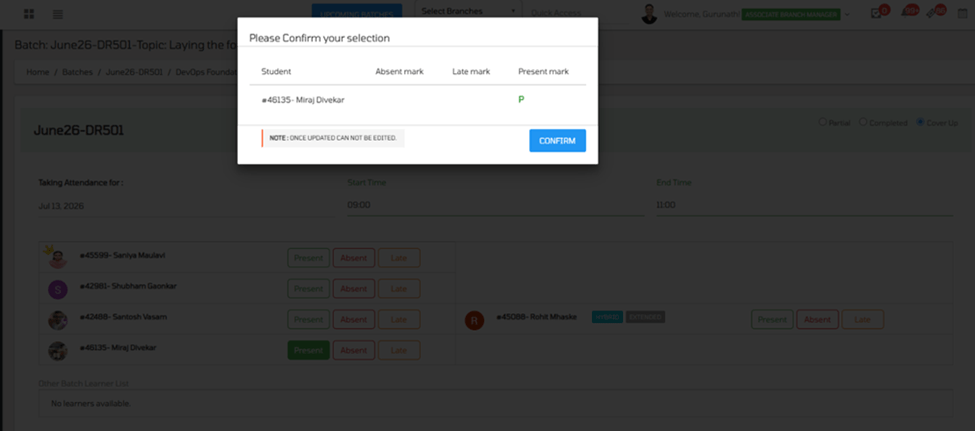
6. Confirm the Attendance
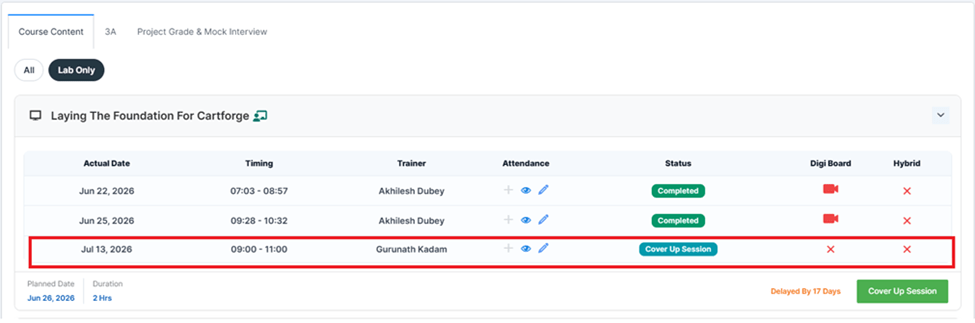
7. You will be redirected to the batch schedule, verify the coverup attendance record
If the cover-up session is conducted by a different faculty member, coordinate with the batch faculty to mark attendance. Ensure manual attendance is completed on the same day to maintain accurate records.
Cover-up Attendance Protocol
6. Confirm the Attendance
7. You will be redirected to the batch schedule, verify the coverup attendance record
By Content ITV