Selenium WebDriver Basics


WebElement Operations

Learning Outcome
4
Retrieve text and attributes from elements.
3
Perform actions: click, type, clear, submit.
2
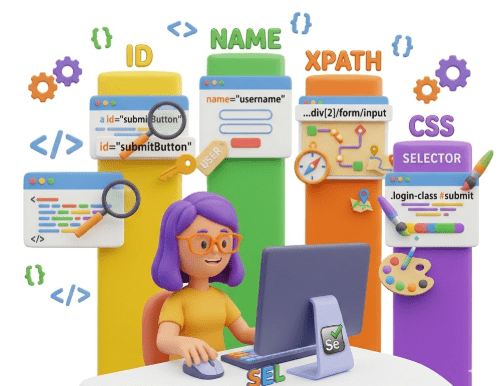
Locate elements using id, name, class, XPath, CSS.
1
Understand what WebElements are.
5
Check element states: displayed, enabled, selected.
Recall
Selenium WebDriver Basics
In manual testing, we interact with web elements of software applications by performing actions just like an end user would:

In automation testing, we cannot interact with web elements manually. To automate actions, we must precisely locate each web element on the web page.
Selenium locators are the key concept for this. They allow us to identify and access elements so that automated scripts can perform actions like click, type, select, or read text reliably.
Mastering locators is essential for building robust and maintainable automation tests.
Human errors possible

Challenges:
Time-consuming
Repetitive work

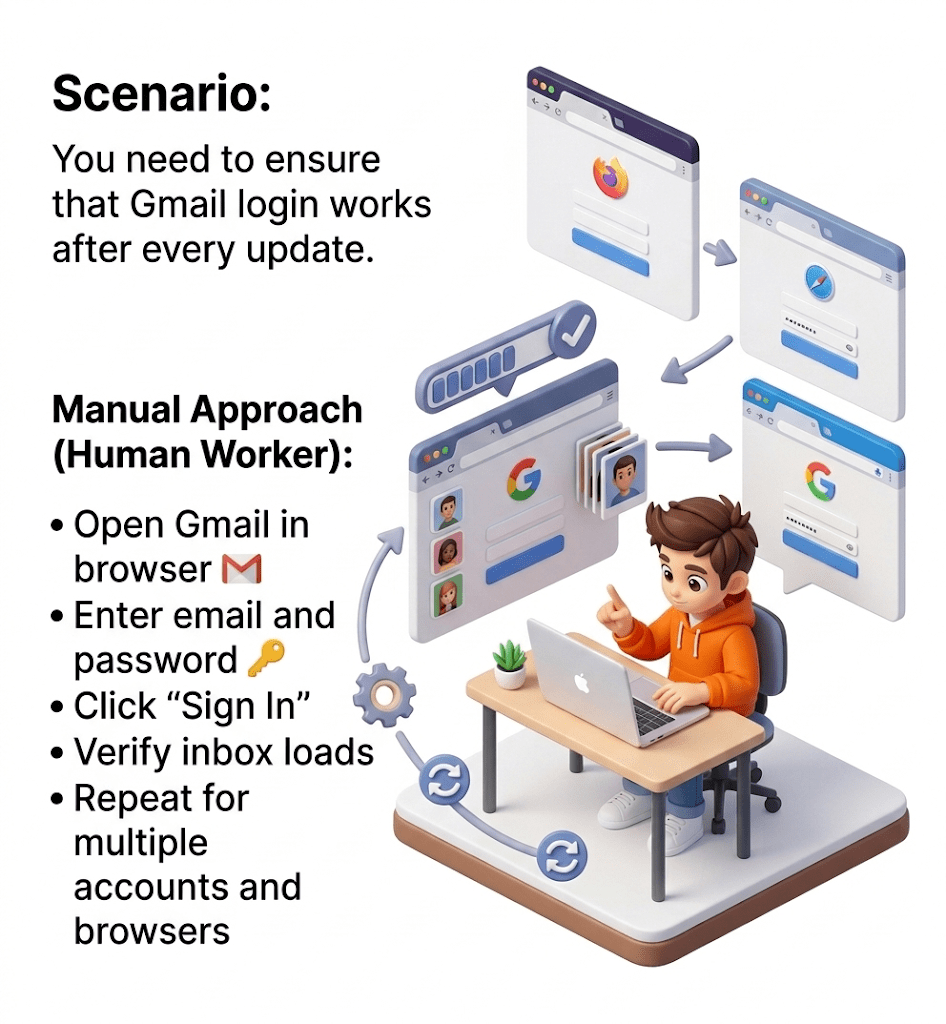
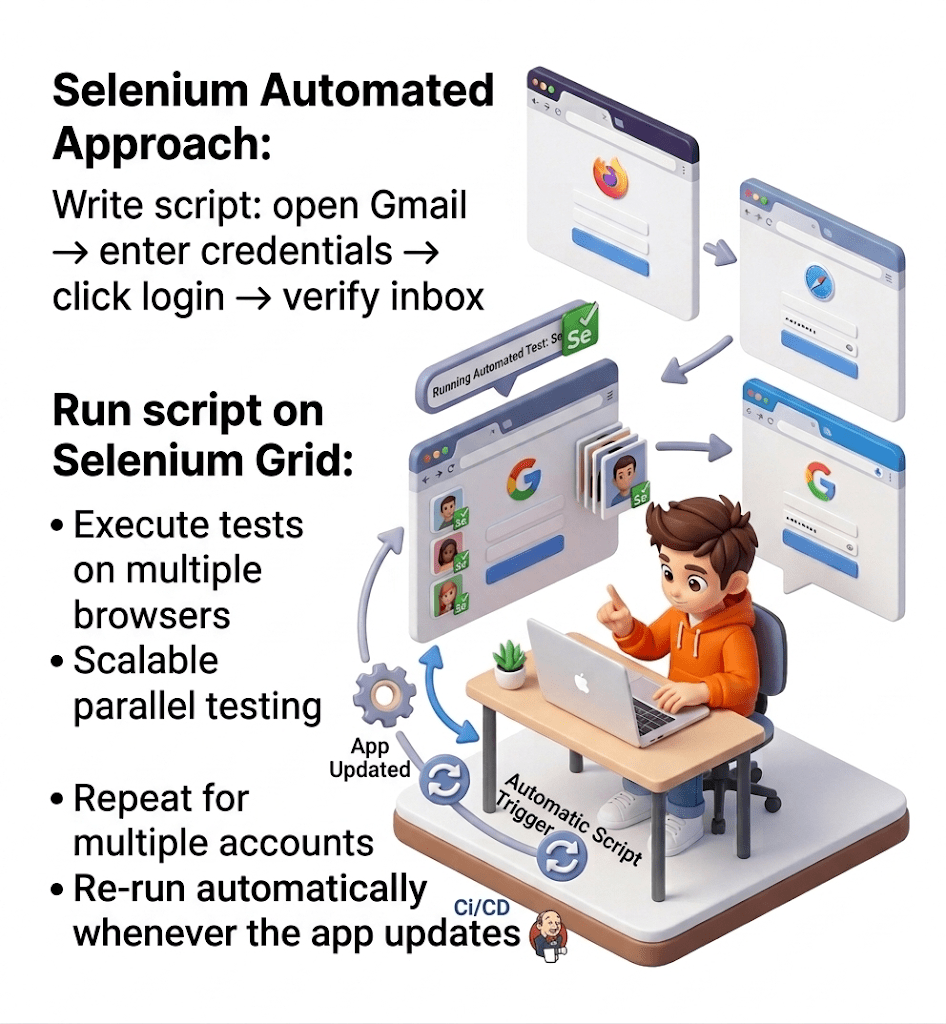
Open Gmail → enter credentials → click login → verify inbox
Automation Approach with Selenium (Robot Tester):
Write Selenium script:
Run script on multiple browsers using Selenium Grid
Re-run automatically whenever the app updates
Faster testing
Consistent and accurate results
Tester can focus on more complex tasks like usability or exploratory testing
Outcome:


Why Automation Testing?
Reduces human errors in repetitive testing.
Ensures web apps work on different browsers and devices
Integrates with CI/CD pipelines for faster release cycles.
Saves effort and resources over multiple testing cycles.




Automates repetitive tasks, running tests much faster than humans.
Test scripts can be reused across multiple test cycles.

Handles hundreds or thousands of test cases easily.


Why Selenium?
Free and Open Source
No licensing costs, widely supported by the community.
Free and Open Source
Supports Multiple Browsers
Chrome, Firefox, Edge, Safari, etc.
Free and Open Source
Free and Open Source
Cross-Platform
Works on Windows, macOS, and Linux.
Supports Multiple Languages
Java, Python, C#, Ruby, JavaScript, etc.
Free and Open Source
Cross-Platform




Example XML:

XPath (short for XML Path Language) is a query language used to navigate and select elements or attributes in an XML (or HTML) document.
It’s widely used in web scraping, automation tools like Selenium, and XML parsing.
XPath works like a path to locate nodes in a document structure.
<bookstore>
<book>
<title>Harry Potter</title>
<price>29.99</price>
</book>
</bookstore>
Example XPath:
/bookstore/book/title
Types of xpath
Absolute xpath
Relative xpath

Begins from the root of the HTML document and specifies the complete path to the element.
It’s not as flexible and can break if the page structure changes.
It is a direct way to find webelement as it starts with single forward slash[/].It can select webelement from root node.
Example
/html/body/div[1]/div/div[3]/div[2]/div[2]/form/div[2]/input
Disadvantage
If there are any changes made in absolute path the xpath get Fail
It Starts from a specific element and navigates through the DOM hierarchy to locate the desired element.
It’s more flexible and resilient to changes in the page structure.
It starts from double forward slash[//] which mean it can search webelement from anywhere on webpage starts in between HTML DOM Structure concise in size.
Example
//*[@id="txtPassword"]
Relative XPath Starts from a specific element and navigates through the DOM hierarchy to locate the desired element.
It’s more flexible and resilient to changes in the page structure.
It starts from double forward slash[//] which mean it can search webelement from anywhere on webpage starts in between HTML DOM Structure concise in size.
Example
//*[@id="txtPassword"]
Common XPath Locator Strategies

Example
//input[@id='email']
1. By Attribute
//tagname[@attribute='value']

//div[contains(@class,'header')]
Free and Open Source
Free and Open Source
2. By Text
//tagname[text()='Login']
3. By Contains
//tagname[contains(@attribute,'value')]
Example
4. By Starts-with
//input[starts-with(@name,'user')]
5. Using AND / OR
Free and Open Source
Free and Open Source
//input[@type='text' and @name='username']
6. Using Index
(//input[@type='text'])[1]

By using Xpath axes we can navigate throughout the DOM page like top to bottom and bottom to top and we can find any elements on the web page even though we don’t have the attribute .
Following are terminologies.
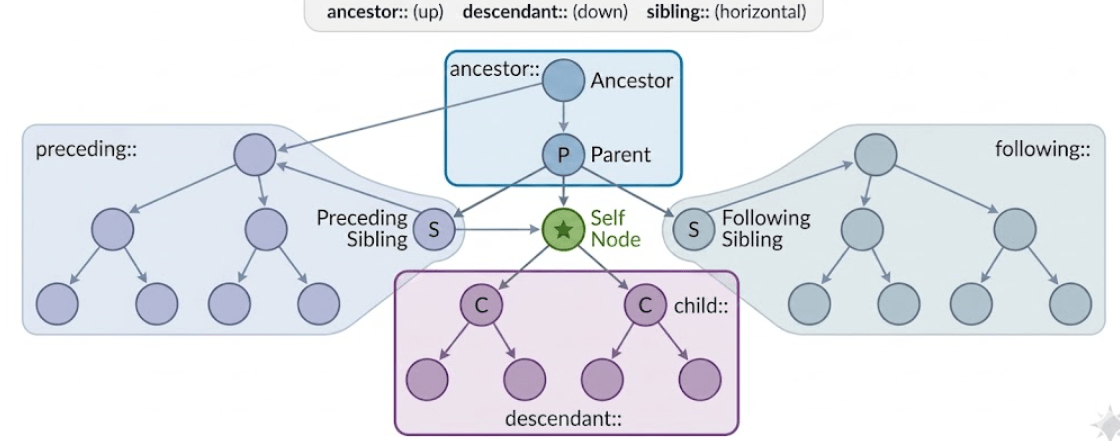
Self node :-from which node from the DOM we are starting is called self node. Or element. i. e main node
Ancestor :- Parent of Parent is Ancestor(Grand)
Parent
child
Descendent---child of child
Siblings –elements from same parent
Preceding sibling—-- nodes come before
following siblings —--after nodes
Relative Locators Or User Friendly Locators
User friendly locators or its also called as Relative locators .

Following are the Relative locators:
So we can find element by ReleativeLocator class having method with(By.TagName()) followed by above locators.(or methods)


below()
toLeftOf()
toRightOf
above()
near()
Summary
4
Accurate locators ensure stable automation scripts
3
Each element must be uniquely identified
2
Core concept for interacting with web pages
1
Technique to identify web elements in automation
Quiz
Which method is used to enter text into an input field?
A.type()
B.write()
C.sendKeys()
D.inputText()

Quiz
Which method is used to enter text into an input field?
A.type()
B.write()
D.inputText()
C.sendKeys()
